Create a Flex Package
To build a season package, you must first create all the individual shows that will be included in the package. Each show needs to have all performance dates, times, individual show prices and season package price codes.
Note: the info needed is very similar to WINTX // Note: once you have filled out the event name & abbreviation your progress will be auto saved
Click on Show, then Season Packages

Click + Create New Package

Choose the package type you would like to create. For more information on package types click Package Typeshere.
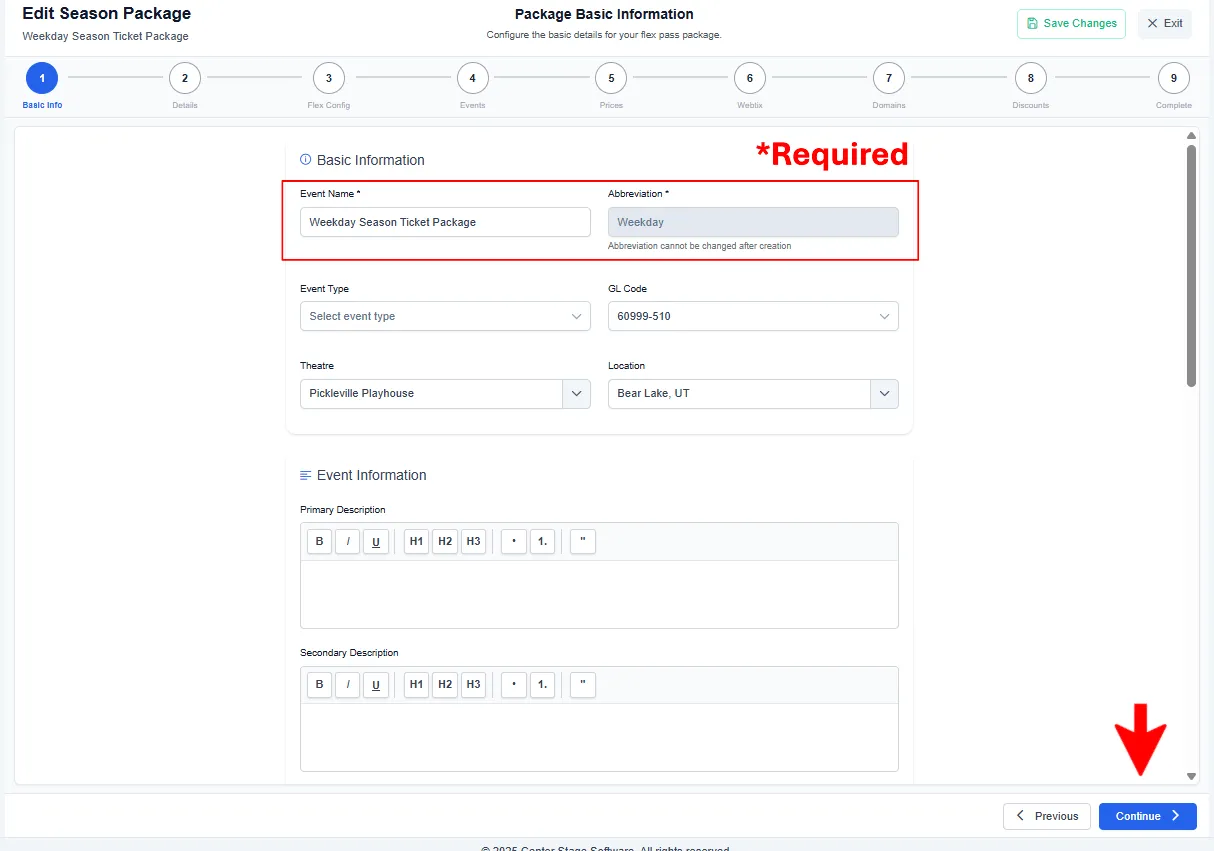
Step 1 - Basic Info
Fill out with your event info
- Note: the only required information is Event Name* and Abbreviation
- Event Info: You are now able to format your text (bold, indent, etc)
Click Continue
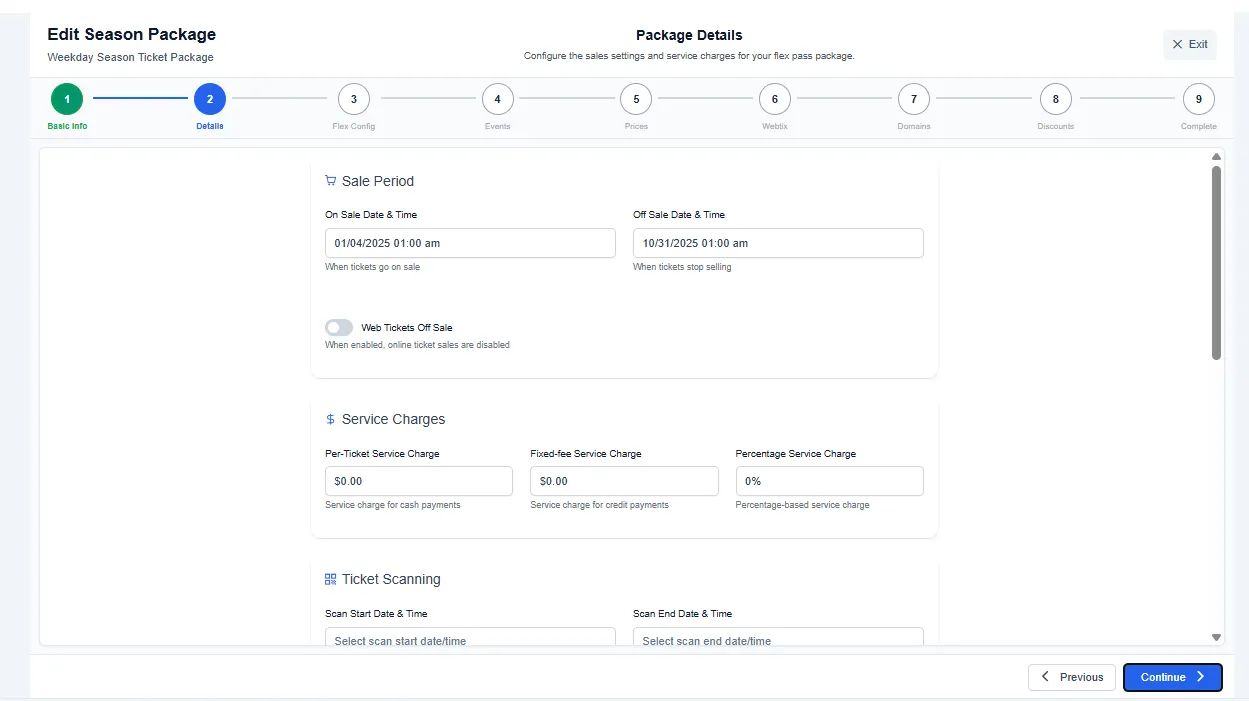
Step 2 - Details
Fill out with your event info
- Performance Information: You are now able to format your text (bold, indent, etc)
Click Continue
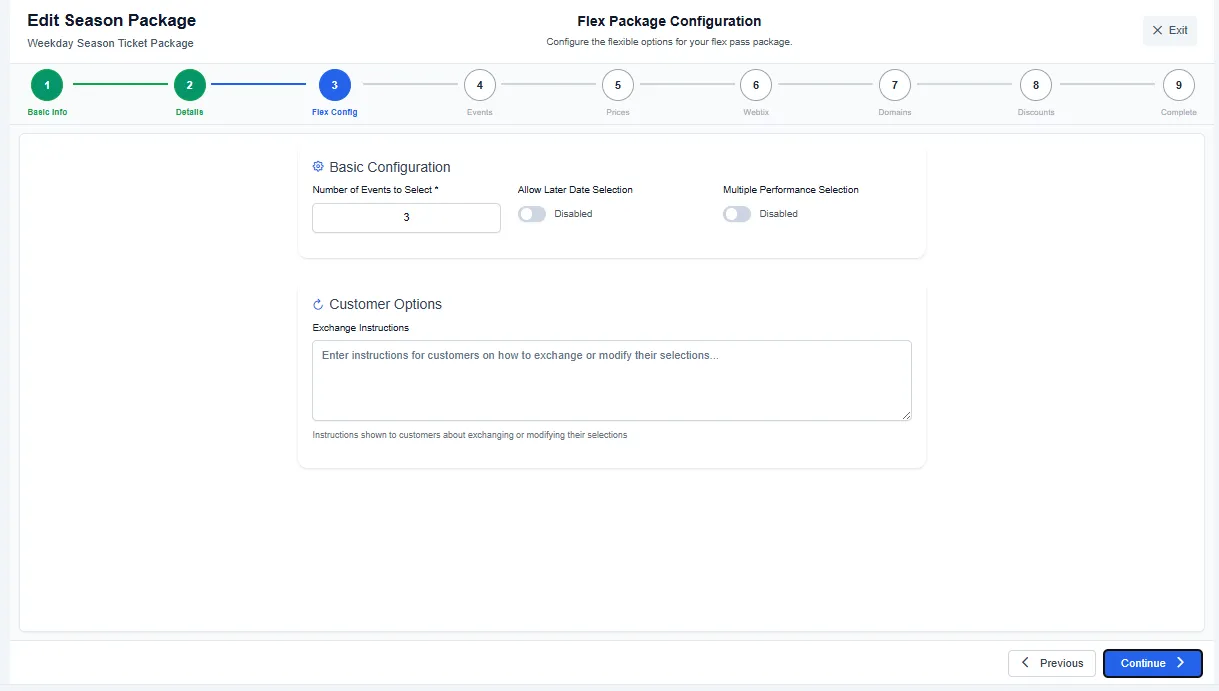
Step 3 - Flex Config
Fill out with your event info
Basic Configuration
- Total Tickets per Package: How many tickets will your package include?
- Allow Later Date Selection: Gives patrons the option to wait until a later date to pick their event dates. Ex Use: If you want to sell your package prior to having the individual event info.
- Multiple Performance Selection: Gives patrons the option to apply multiple tickets to the same event. Ex Use: A 5 ticket package could be used as; Event A-2 Tickets, Event B-1 Ticket, Event C-2 Tickets
Click Continue
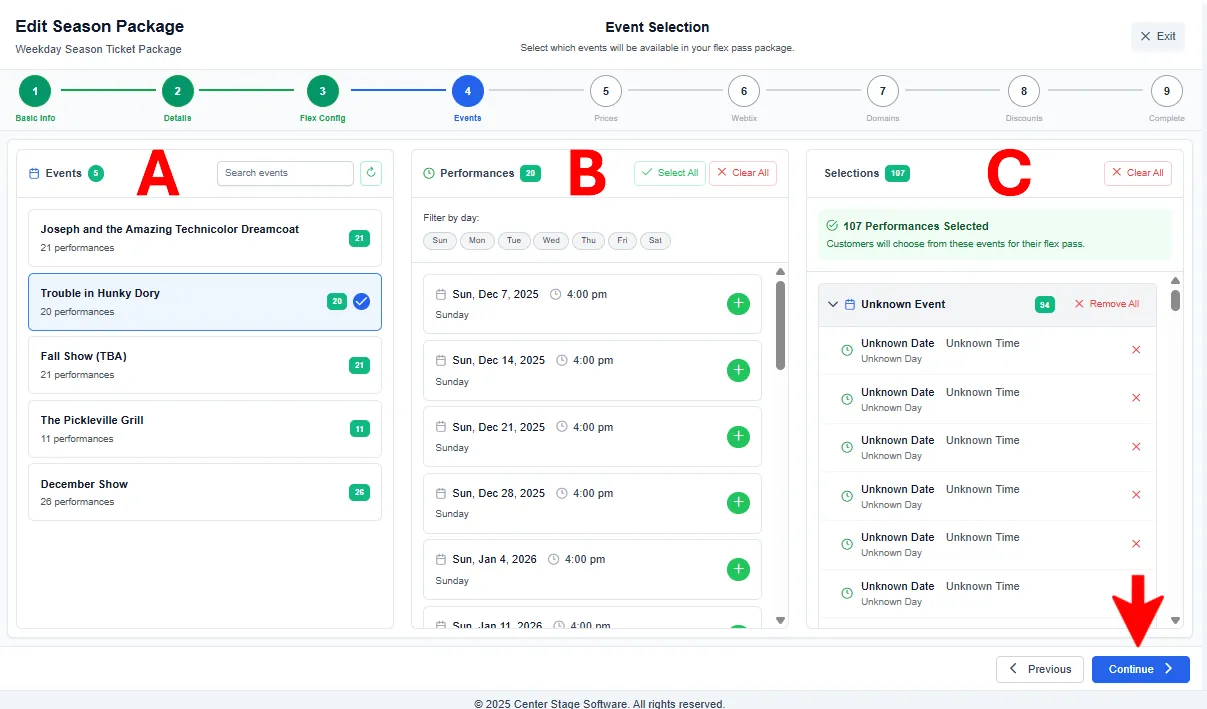
Step 4 - Events
Select the events that will be available as part of your package
A. Click on the event
B. Click on the performance dates (can use select all)
C. Verify the selections are correct
Click Continue
Step 5 - Prices
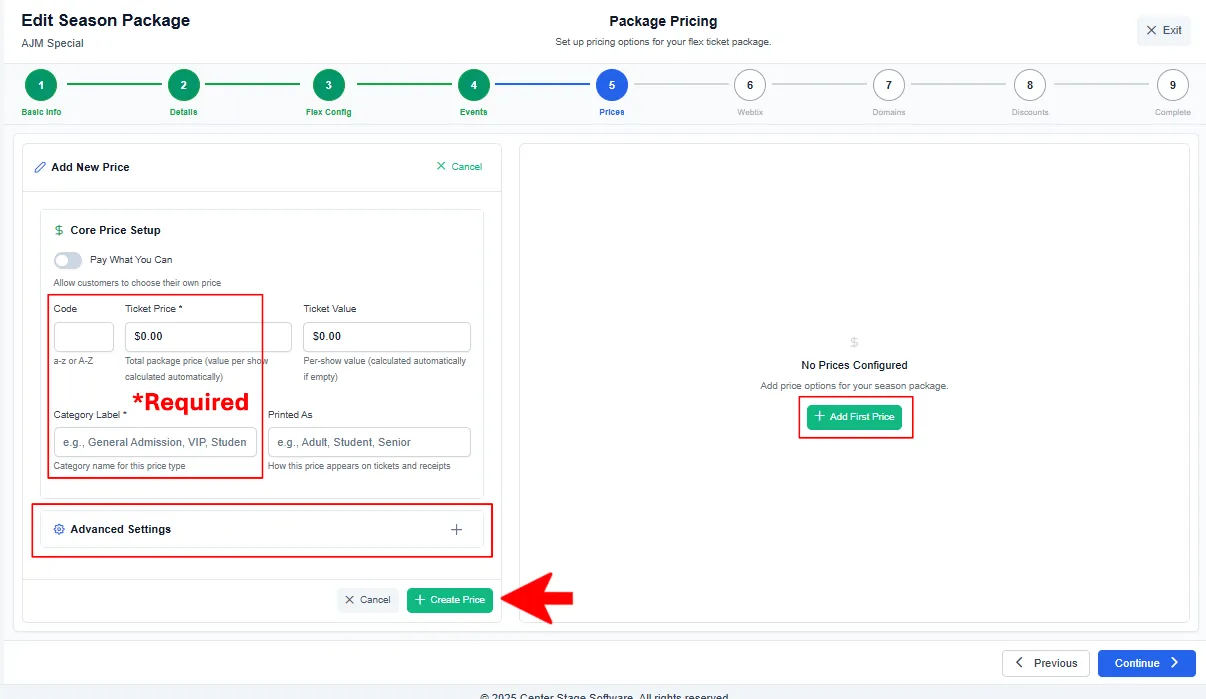
Configure your price codes
- Click +Add Price
- On the left hand side fill out the specifics, then click +create price
- Note: the only required information is Code, Ticket Price, & Category Label
- For Advanced Settings (on/off sale, min/max, service chg, etc) scroll down and click the + sign
- Note: The price code letter code needs to have a matching code in the indv events
Note: Once you have a price code added you can edit, clone, or delete

Click Continue
Step 6 - Webtix
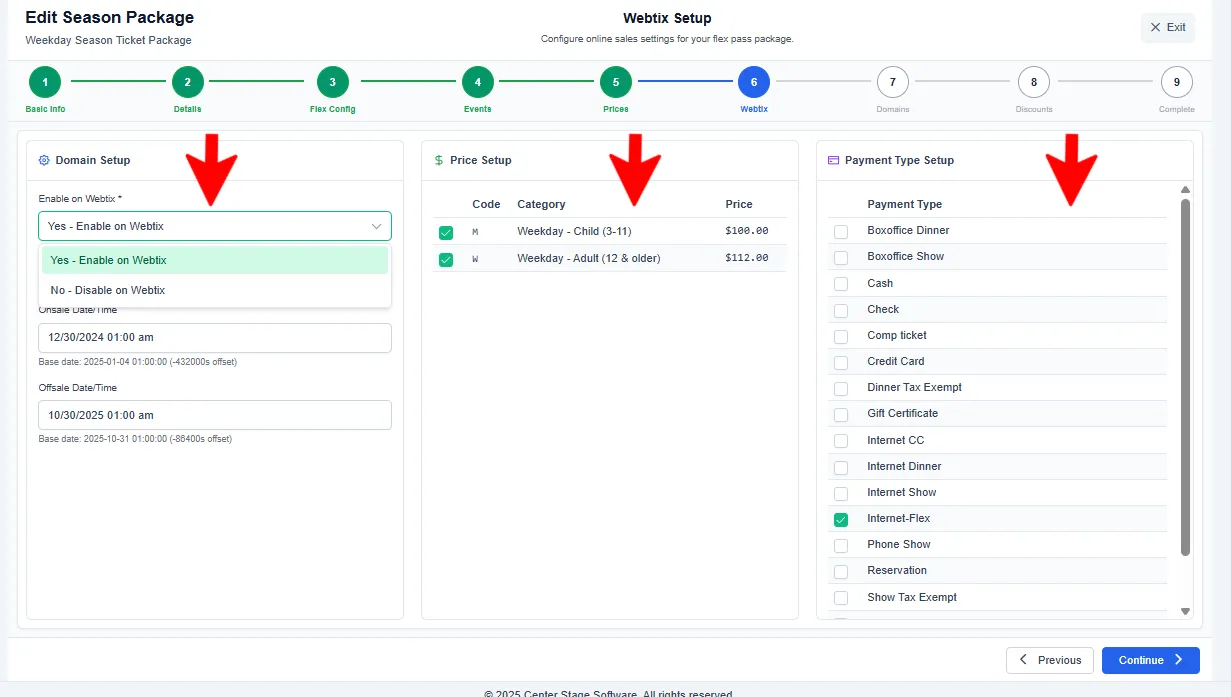
If the package will be sold to your patrons on Webtix you need to pick the required price codes & payment types.
Click Continue
Step 7 - Domains
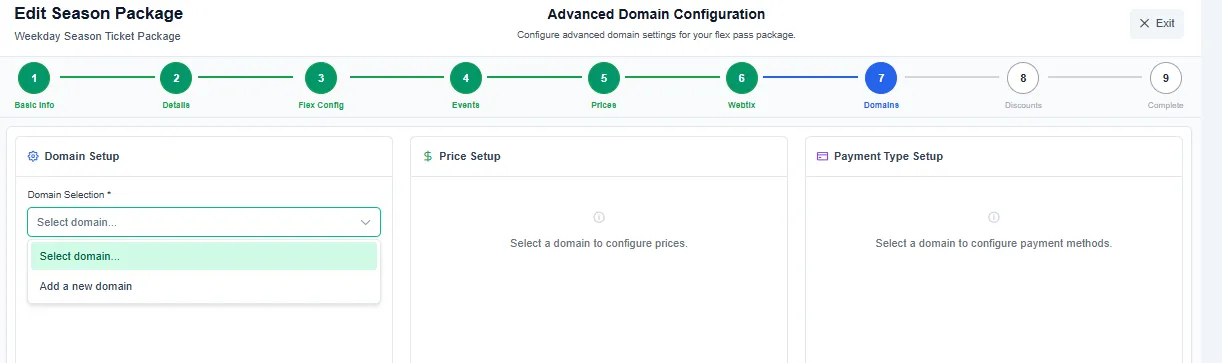
If you use domains, configure them here.
- Click the Select domain… drop down box
- Select add a new domain
- Pick your domain settings
Click Continue
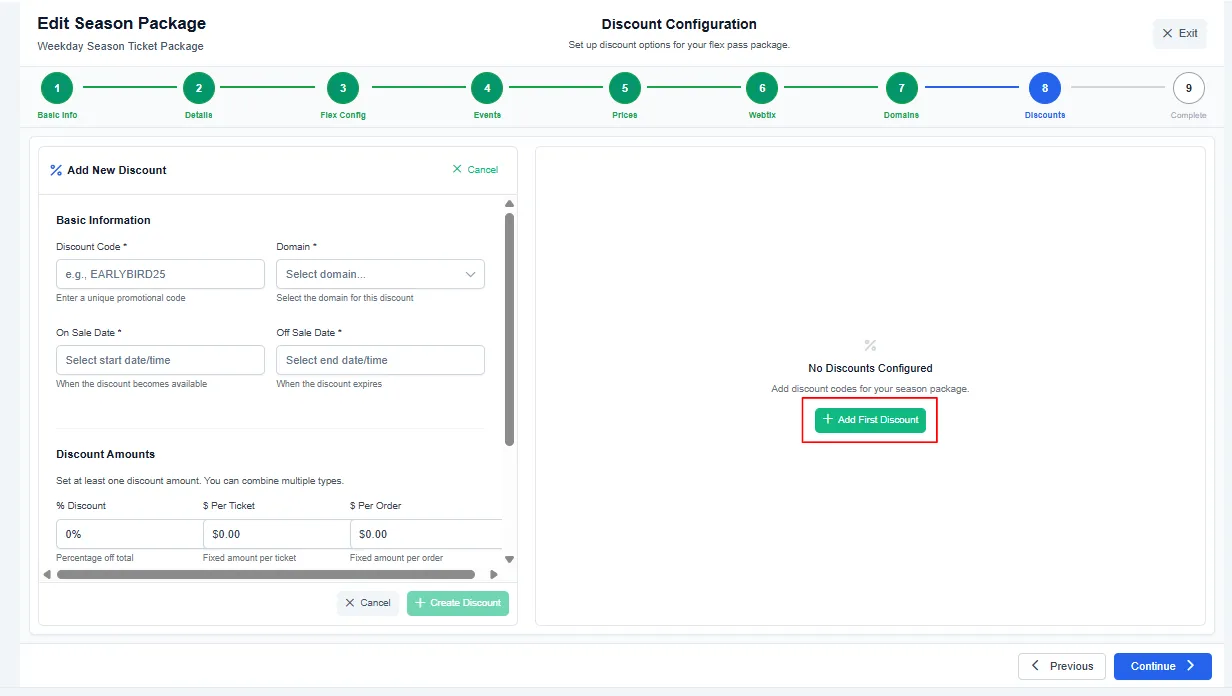
Step 8 - Discounts
To use discounts click +Add First Discount
- Fill out the Basic Information on Left hand side
Click Continue
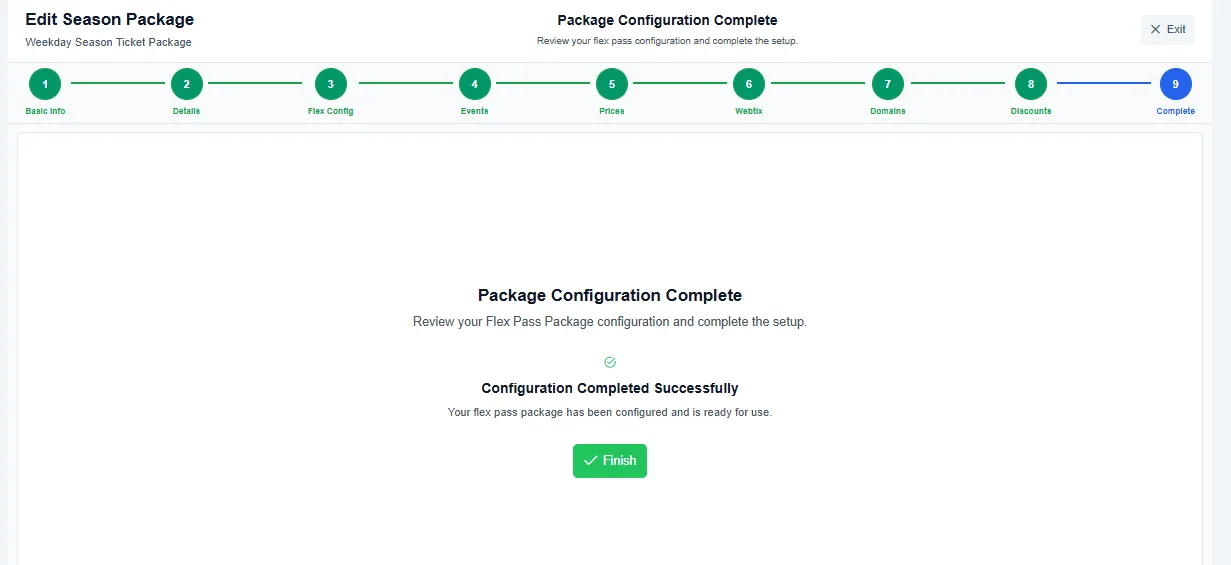
Step 9 - Complete
Click Finish