Email Marketing
We are so excited to announce email marketing in TixPro8! You can use this feature to send automated and bulk emails to your customers. Some examples are: show reminders, upcoming shows and more! There are 2 sections you will use to set up emails:
1) Email TemplatesEmail Templates | 2) RulesRules
Email Templates
This is where you will set up the layout(s) of the emails you will send out. You can start a template from scratch or use the default template.
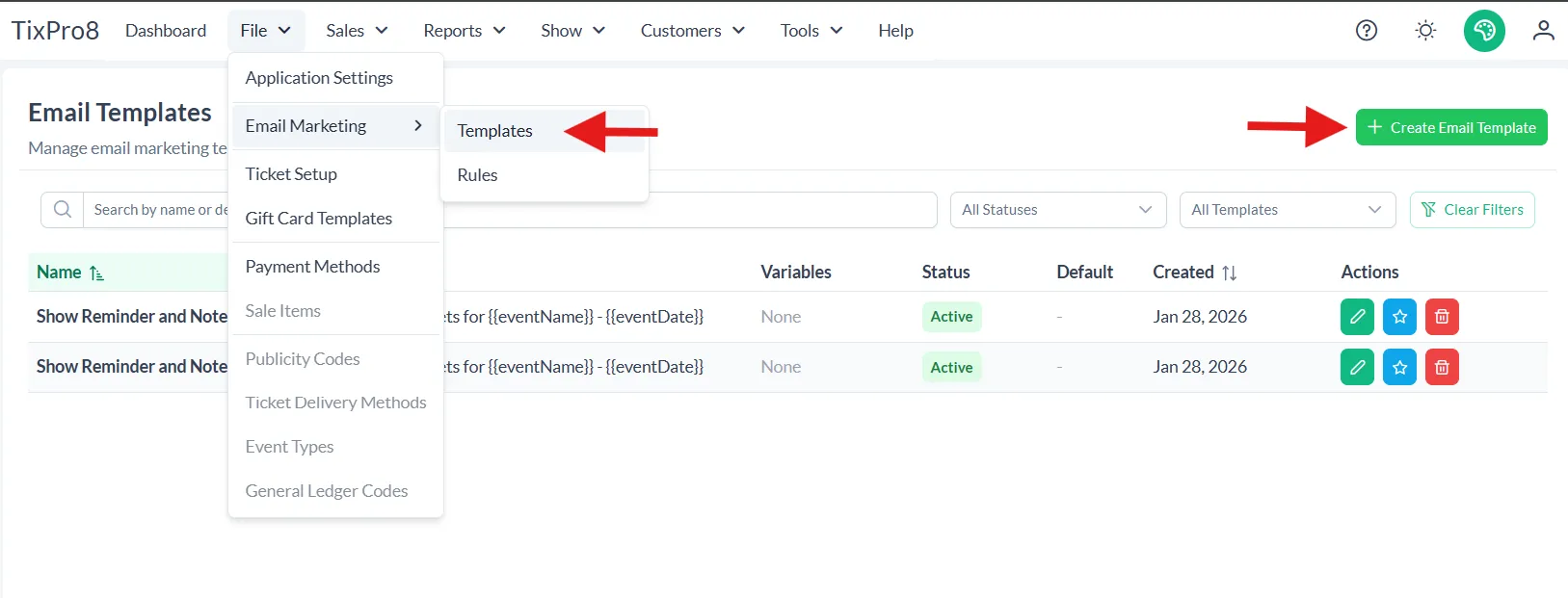
Under actions you can edit, set default, or delete a template
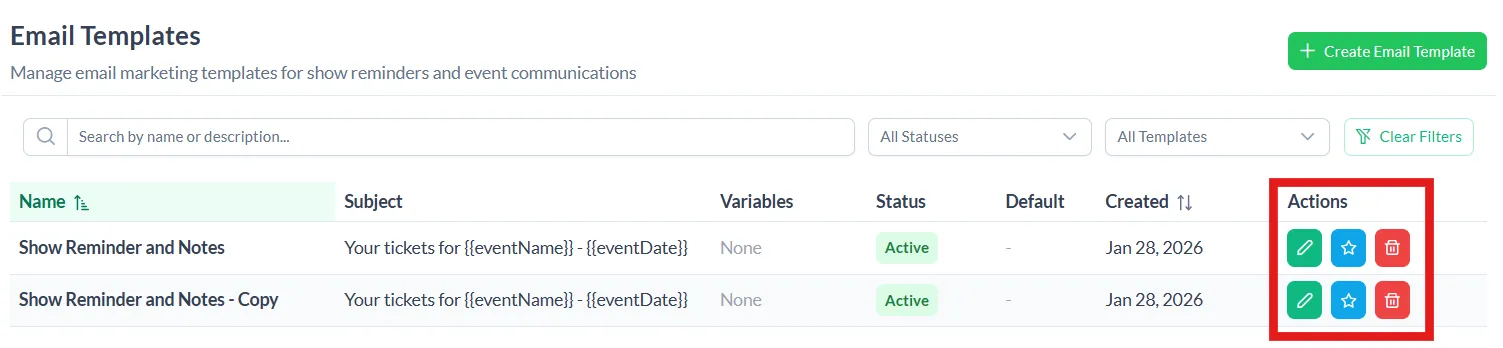
Email Editor Content
The editor opens to “Content” where you will set up what your email includes.
On the Left is the design, the right is a preview of what your patron will receive.
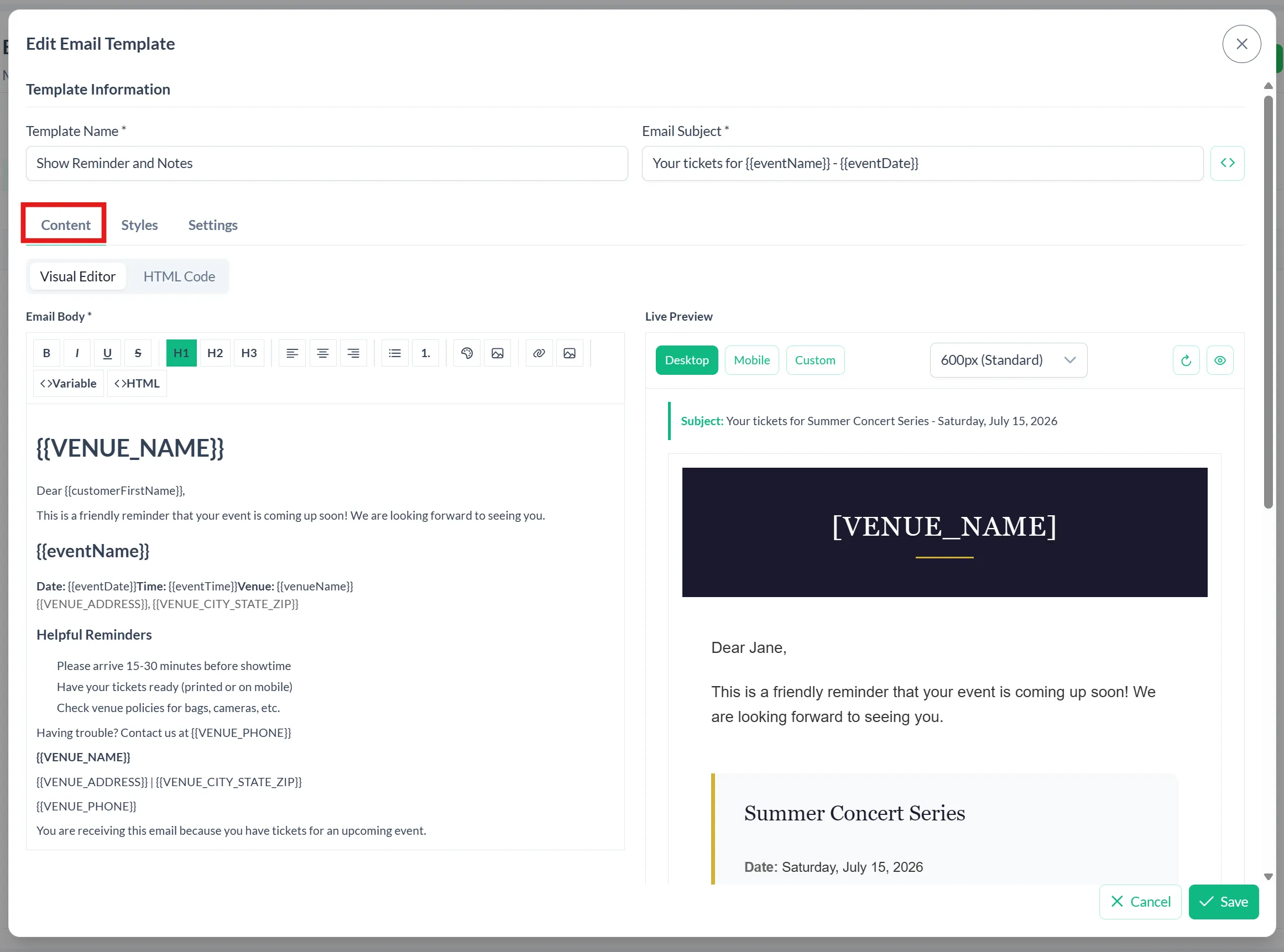
You can format the email body using the options in the header.
Text Options
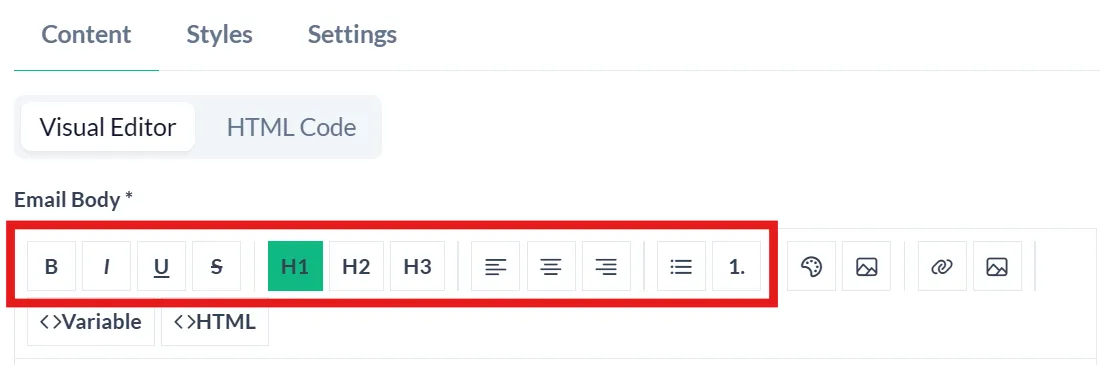
Text/Background Color

Insert Link/Picture

Variables are dynamic fields that will autofill based on unique information. I.e. the customer name, event info, venue info, etc.

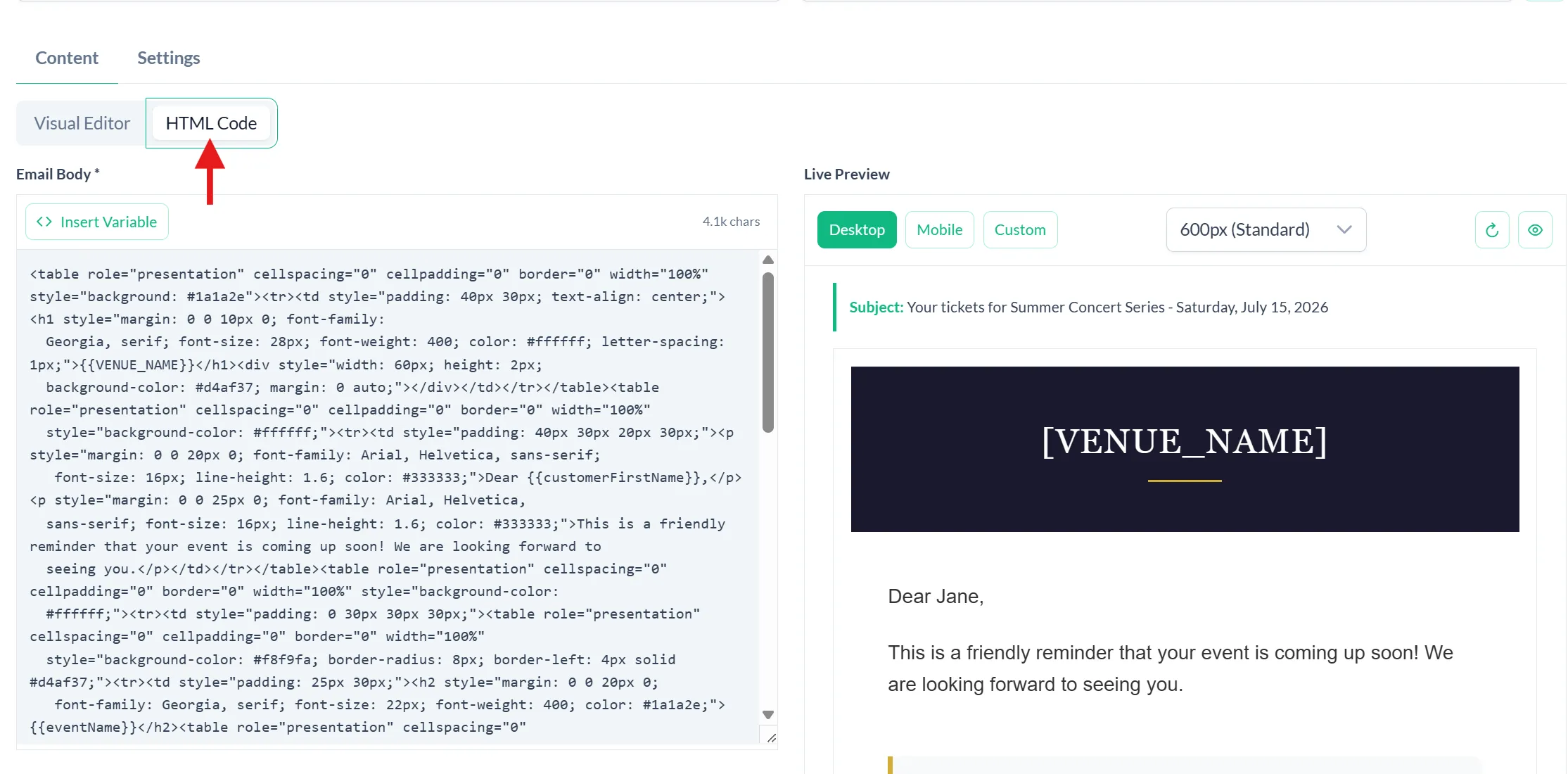
HTML Editor (advanced users)
Advanced users can use the HTML editor to create their email design. Note: if you chose to edit in HTML you cannot go back to the visual editor. Changes will reflect on the live preview.
Email Editor Styles
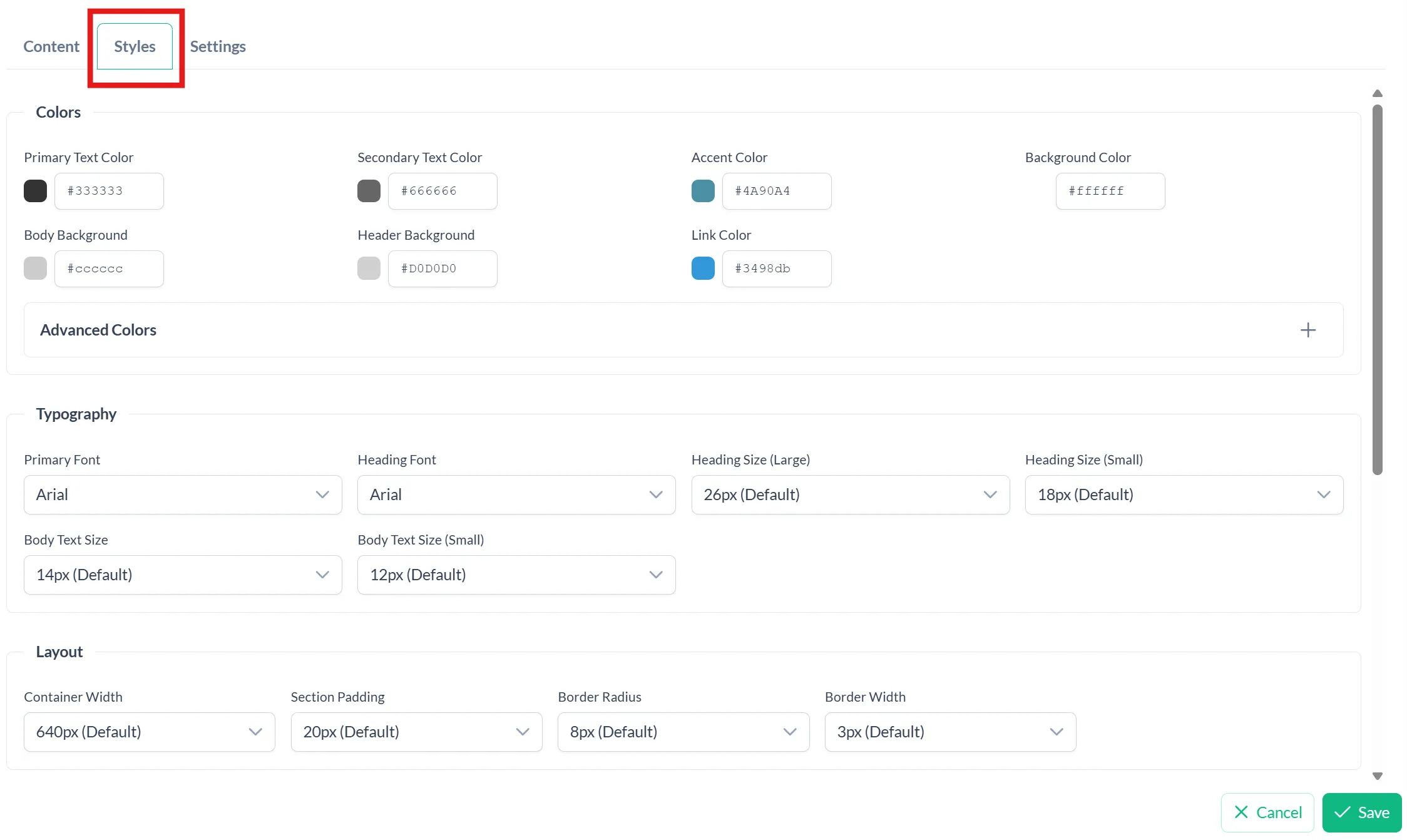
In the styles tab you can set color, typography, and layout of your email. You can set these to match your branding
Email Editor Settings
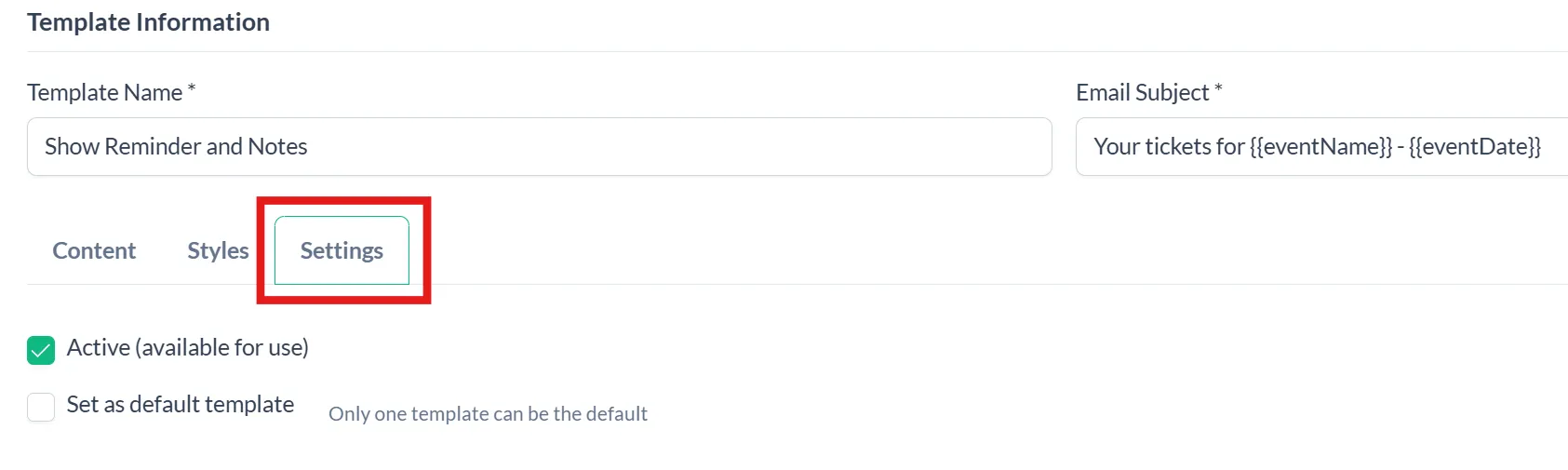
Set the template as active and/or the default
Rules
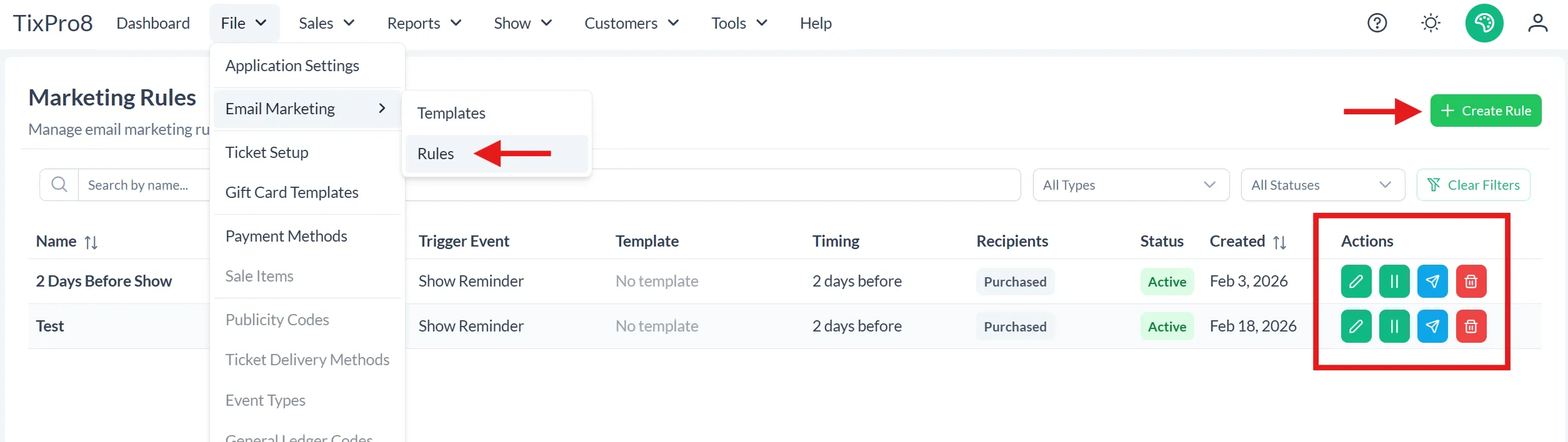
Rules are where you set up the specifics of who and when an email will be sent
Actions
Edit, Disabled, Test Email, Delete
Click “+ Create Rule”
Name your Rule
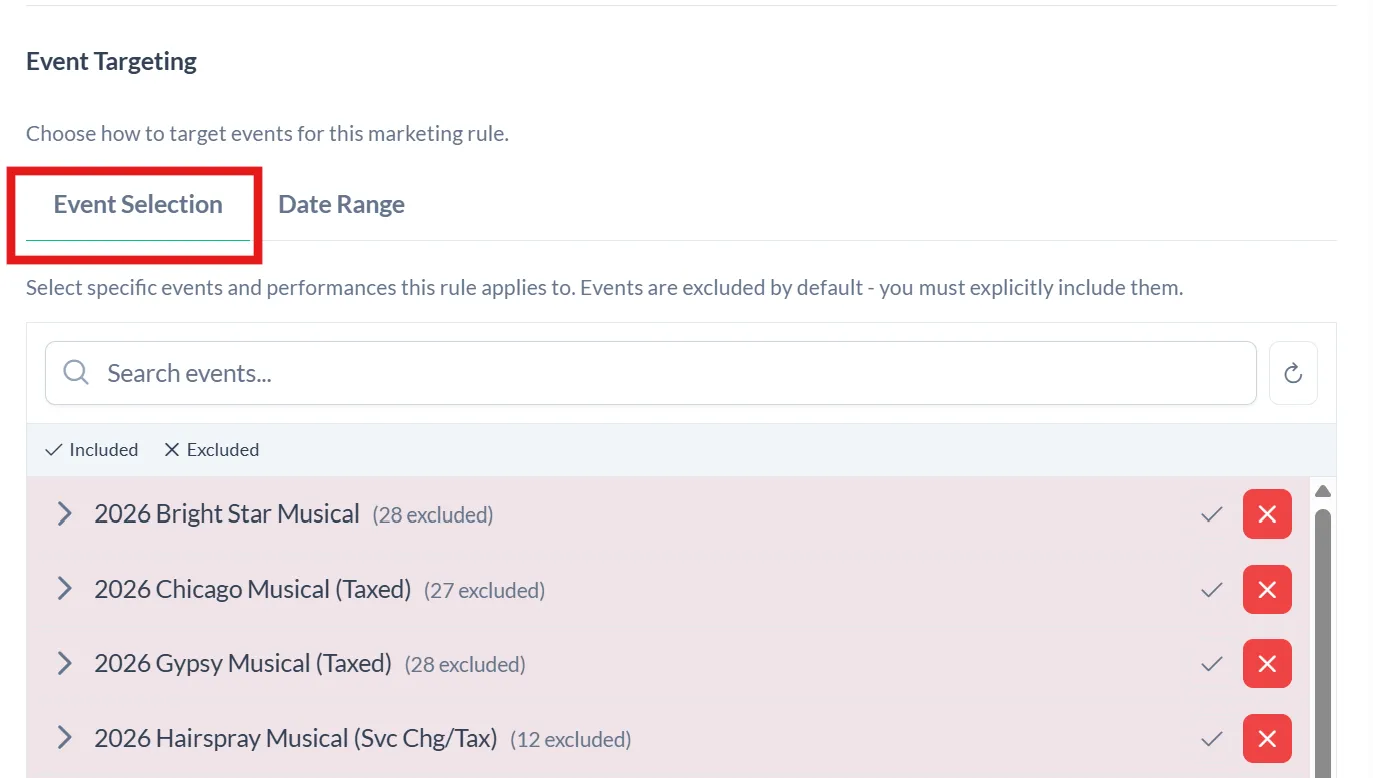
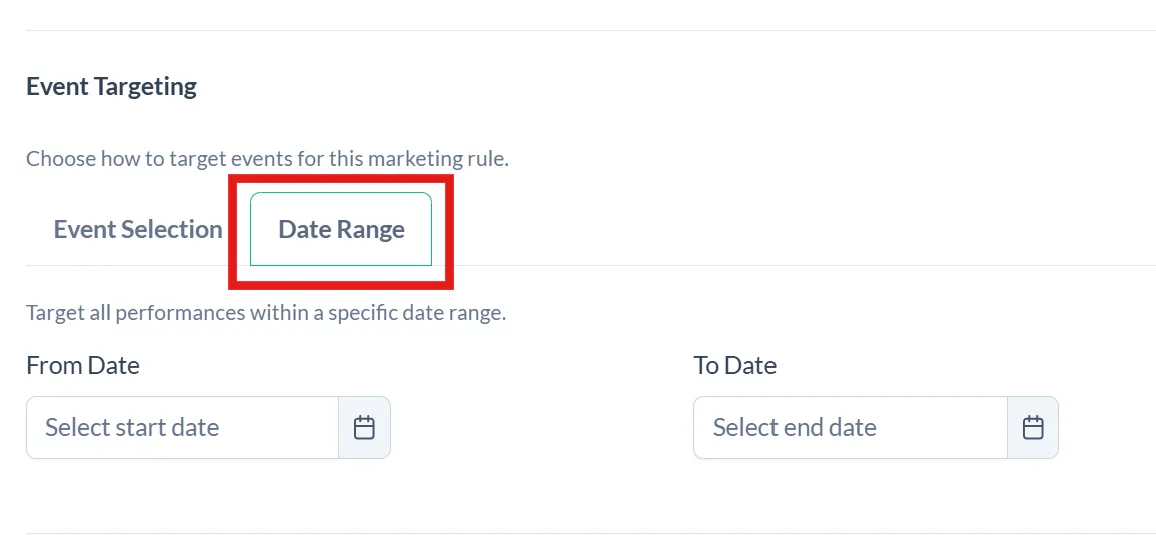
Event Targeting
Part one to determine which recipients will receive the email.
- Event Selection; by a specific event or all events, all events are included by default Ex: dinner is at a different time, specific clothing req, ticket req, etc
- Date Range: events in a specific timeframe. Ex: there is a change due to construction
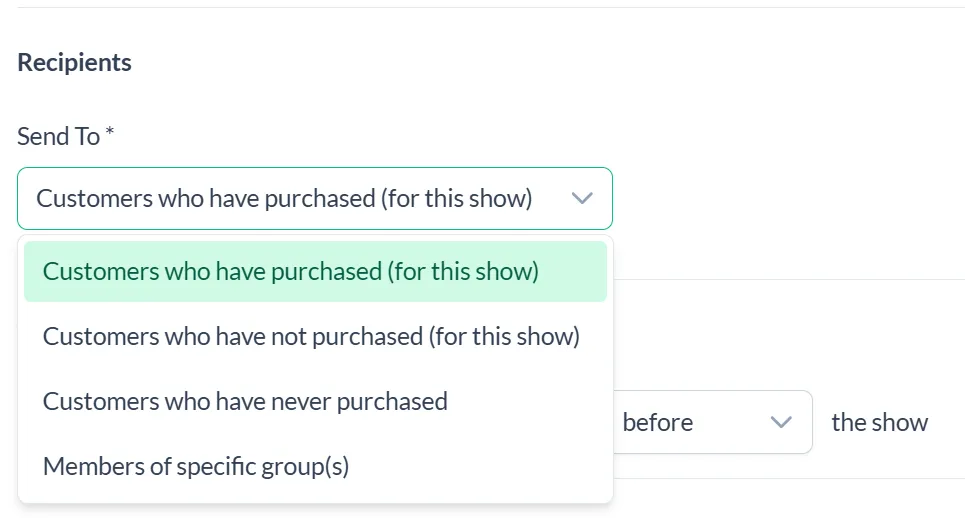
Recipients
Part two to determine which recipients will receive the email.
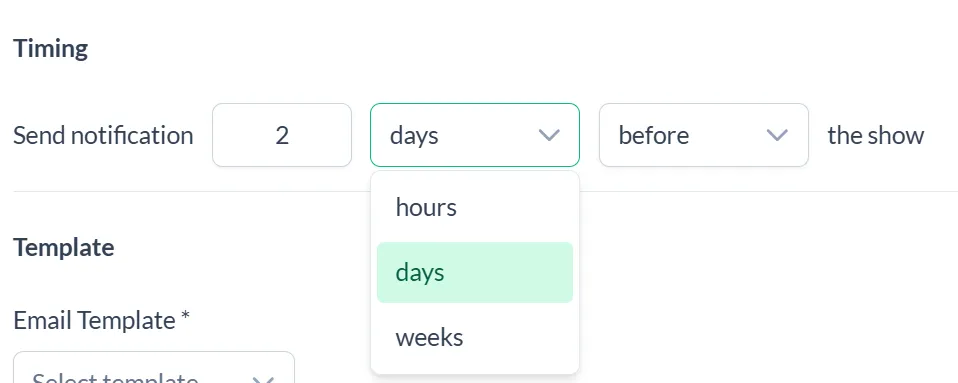
Timing
When the email will be sent. You choose by hours, days, weeks, before or after a show
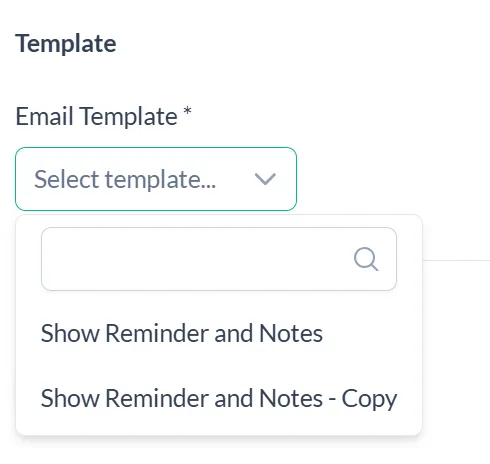
Template
Choose which template to send
Settings
Whether this rule is actively sending emails or not

Click “Save Changes”