Groups
Group management is now available in TixPro8! This can be used for employees, volunteers, customers, and more! You are able to assign comp tickets to the groups with options to set timeframes, ticket limits, and specific events.
Customer TabCustomer Tab | Comp AllocationsComp Allocations | Member CodesMember Codes
Click on Customers > Groups
Here you will see your current groups, their details, and create a new group
Note: 10 groups are automatically added; you can use or delete these groups
You can find a specific group by searching for the name, type, applying filters and sorting by column headers.
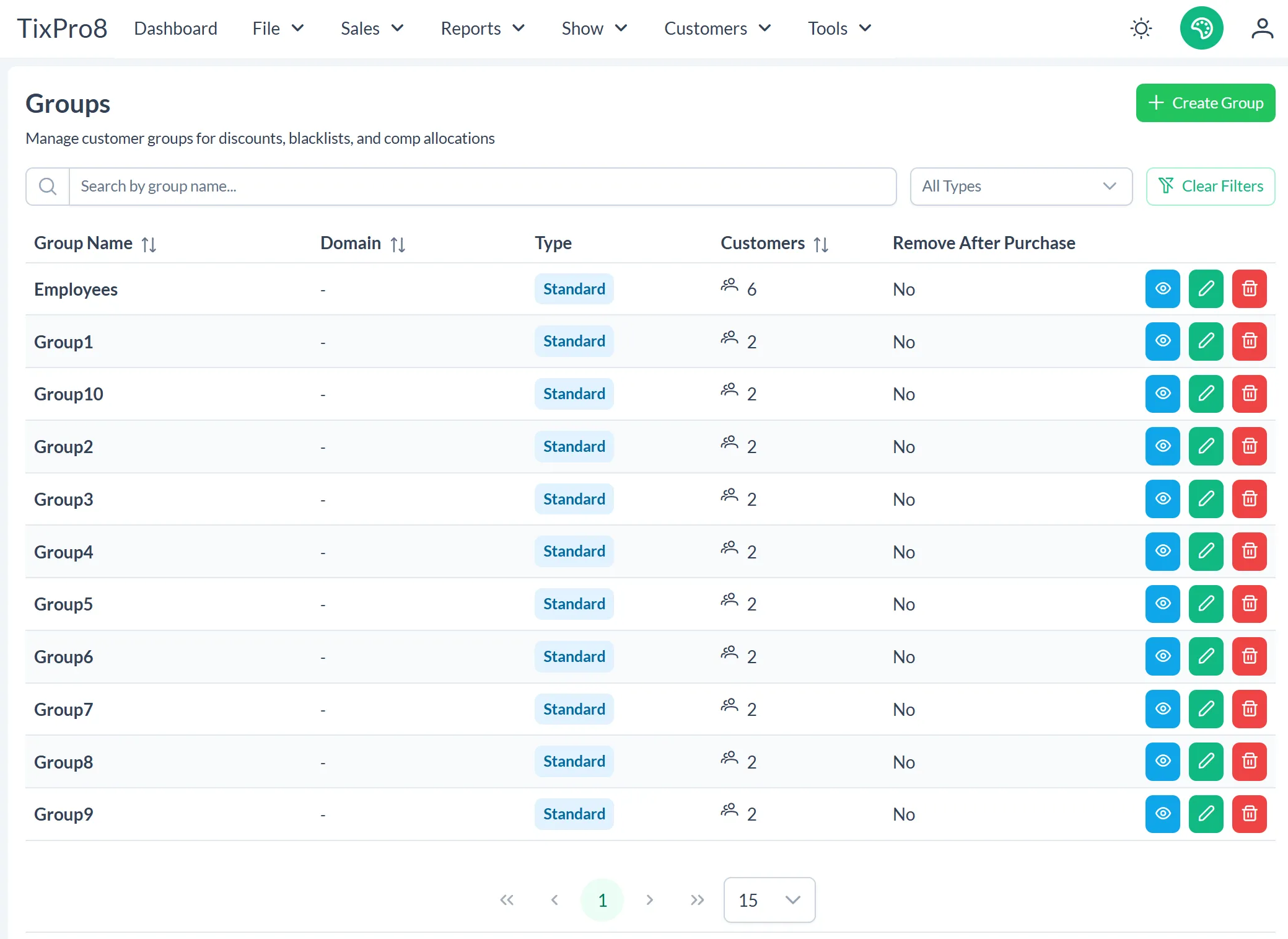
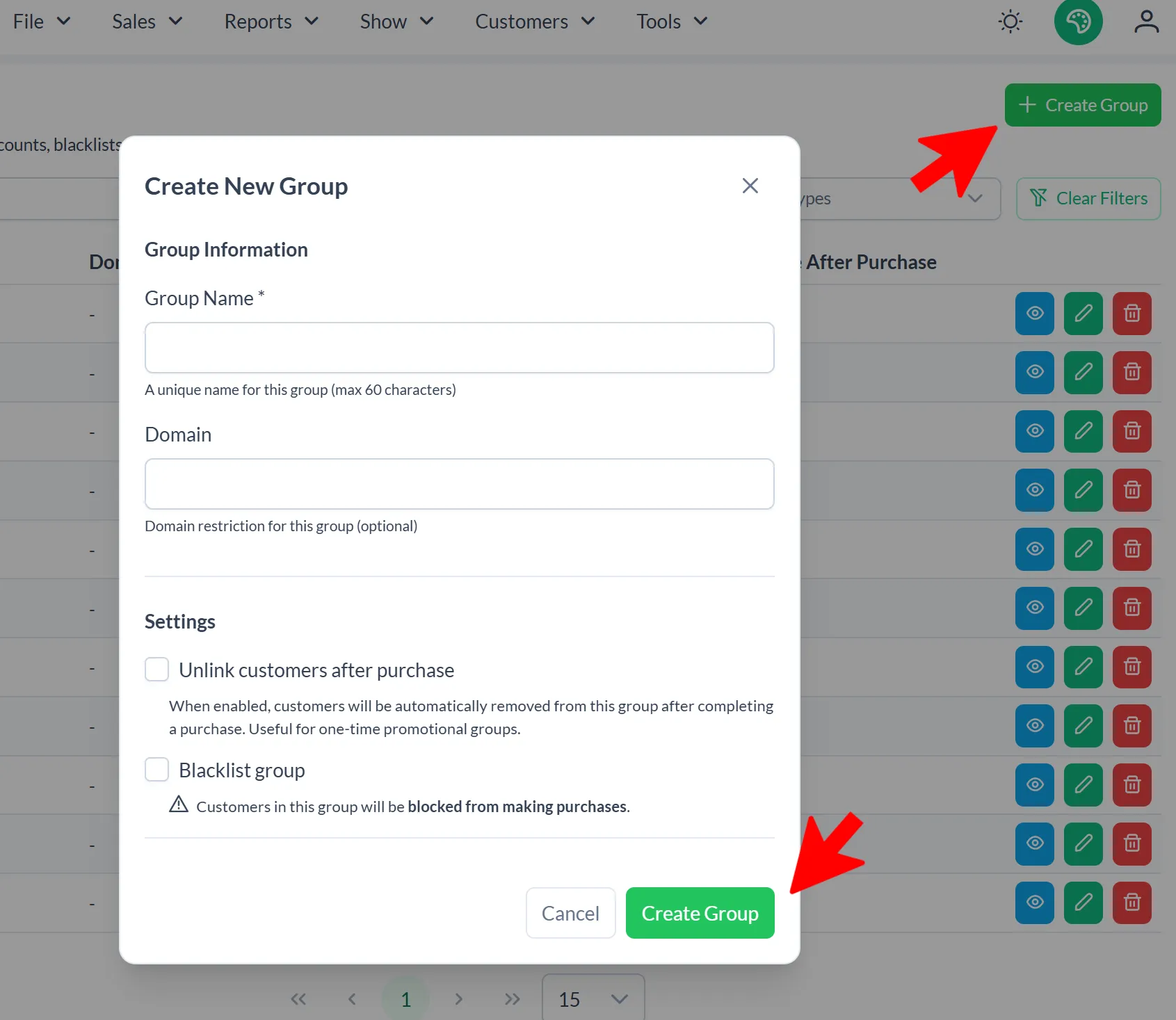
To add a new group click +Create Group (in the top right) and fill out the name and chose your settings. Once all info is entered click Create Group
You can edit this information at any time by clicking the pencil icon.
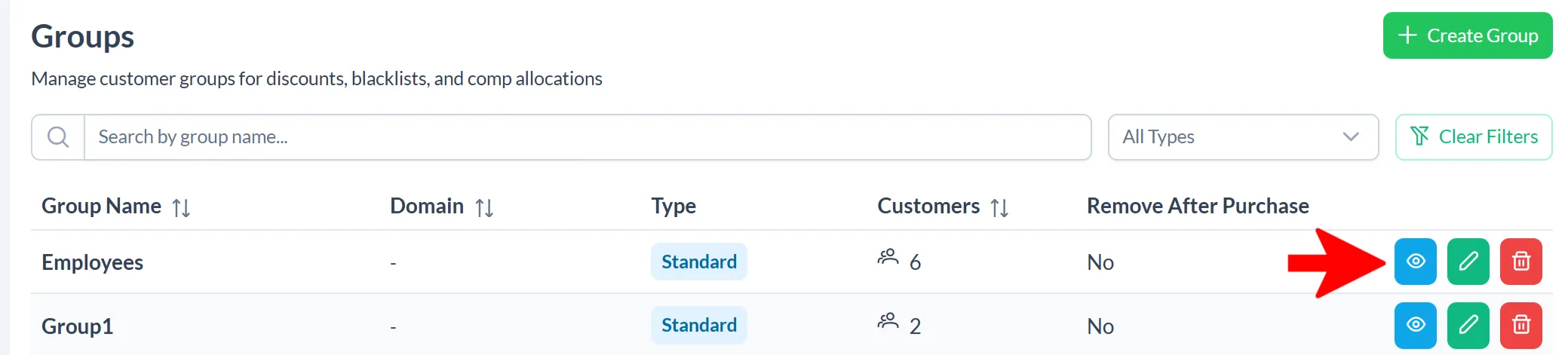
To see more information and create comps click the blue eye button
Customer Tab
This is where you will add/delete customers in your group.
Available customers shows all customers currently in your database. Search for the person you are looking for and click the box to the left of their name to select them.
Once they are selected click the right arrow in the middle of the screen to add them to the group.
Note: If someone is not in your database you will need to add them, that cannot be done in group management
Note: If you cannot find someone who you know is a customer they may already be added in the group. You can search the current members to verify.
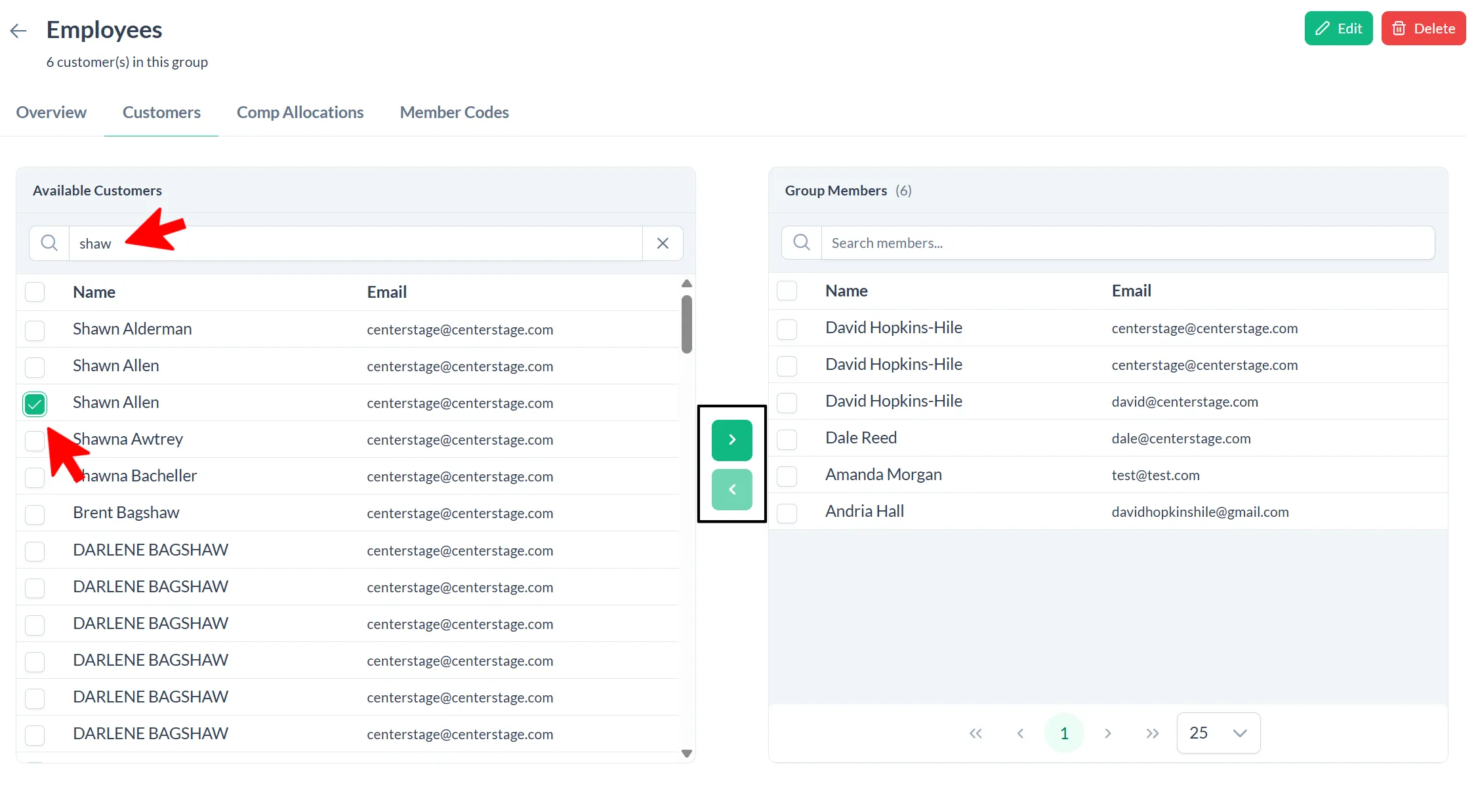
To remove customers you will do the opposite. Under the Group Members list on the right click the box next to their name and then click the left arrow.
You can add/remove members at any time (even after creating comp allocations)
Comp Allocations
This where you will manage the comps for this group (comps do not transfer across groups).
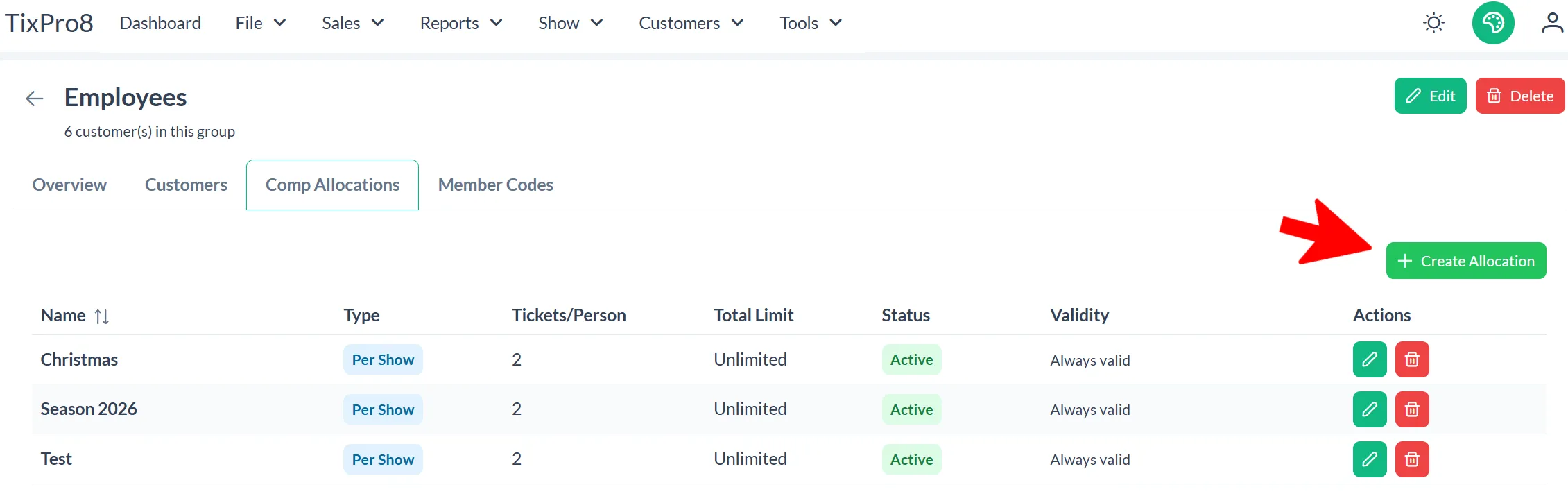
To add a new allocation click the + Create Allocation button in the top right
The information starred is required, all other information is optional
In order for a comp allocation to function you MUST choose which shows it applies to under Event Targeting. By default no shows are included, so you must choose which show(s) are applicable for the comp to work.
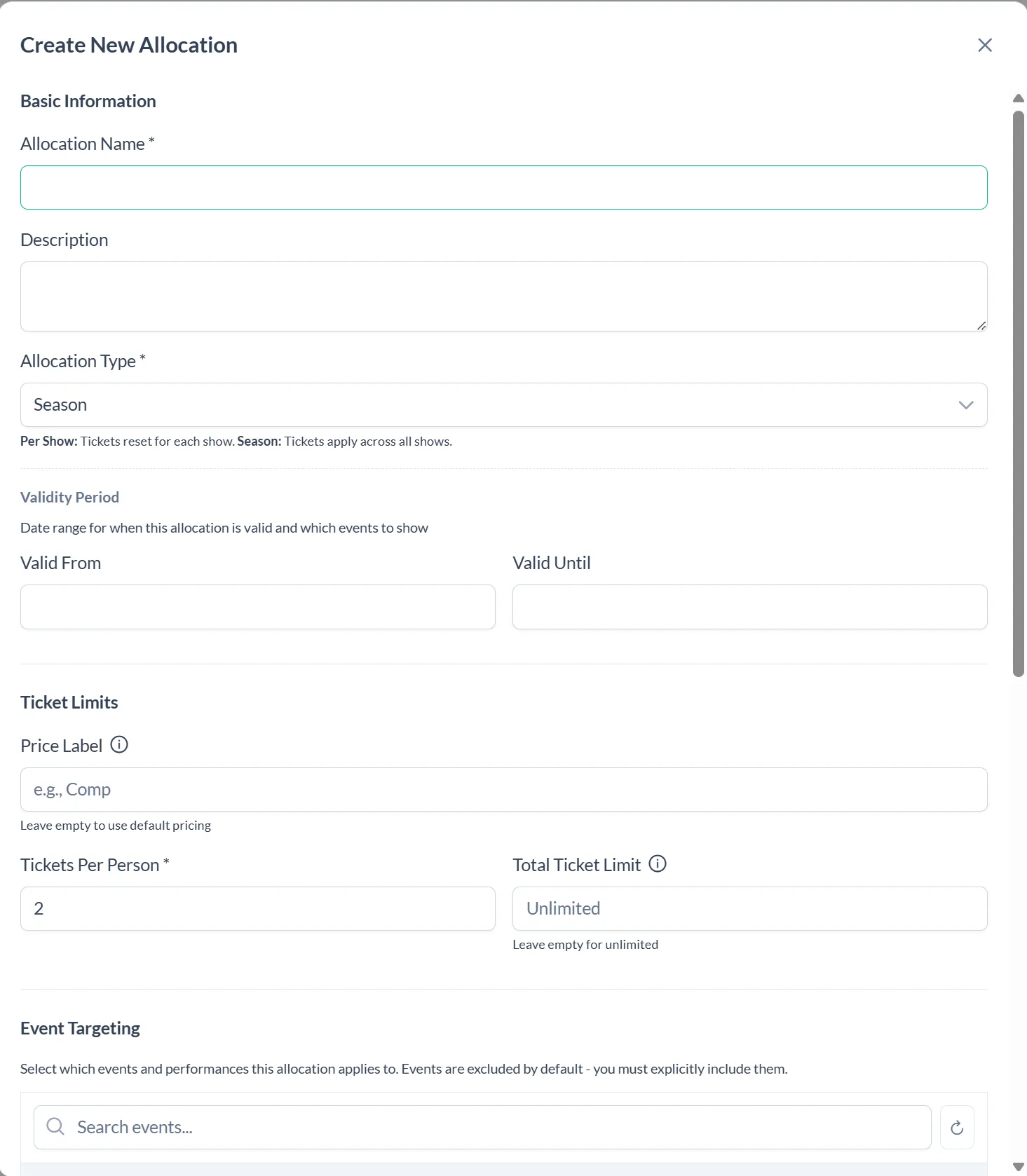
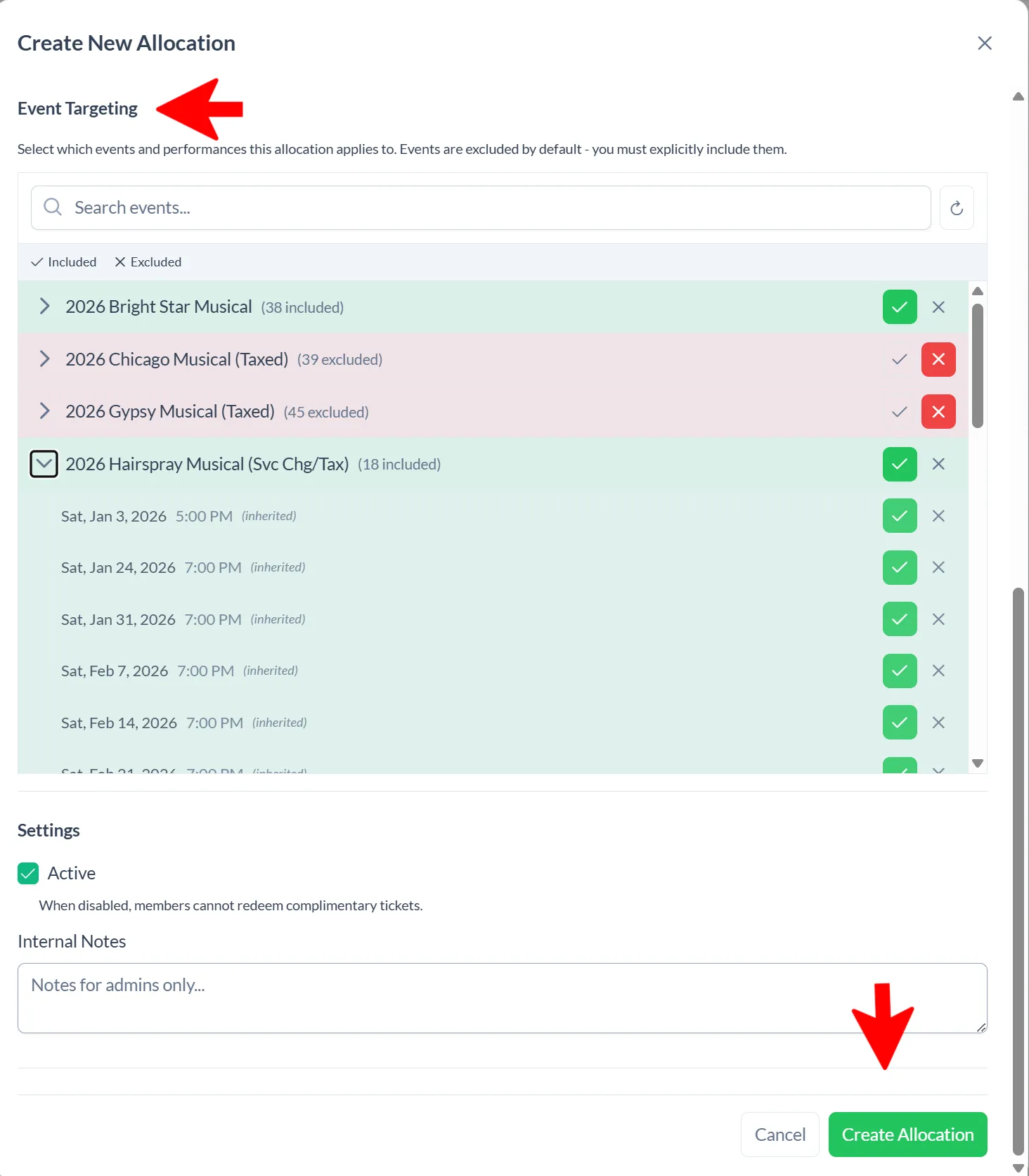
Once all information is entered click “Create Allocation”
Member Codes
Allocations are utilized by a code that is attached to a group members’ customer account. Currently codes can only be used in TixPro8, but in the future they will be available on Webtix.
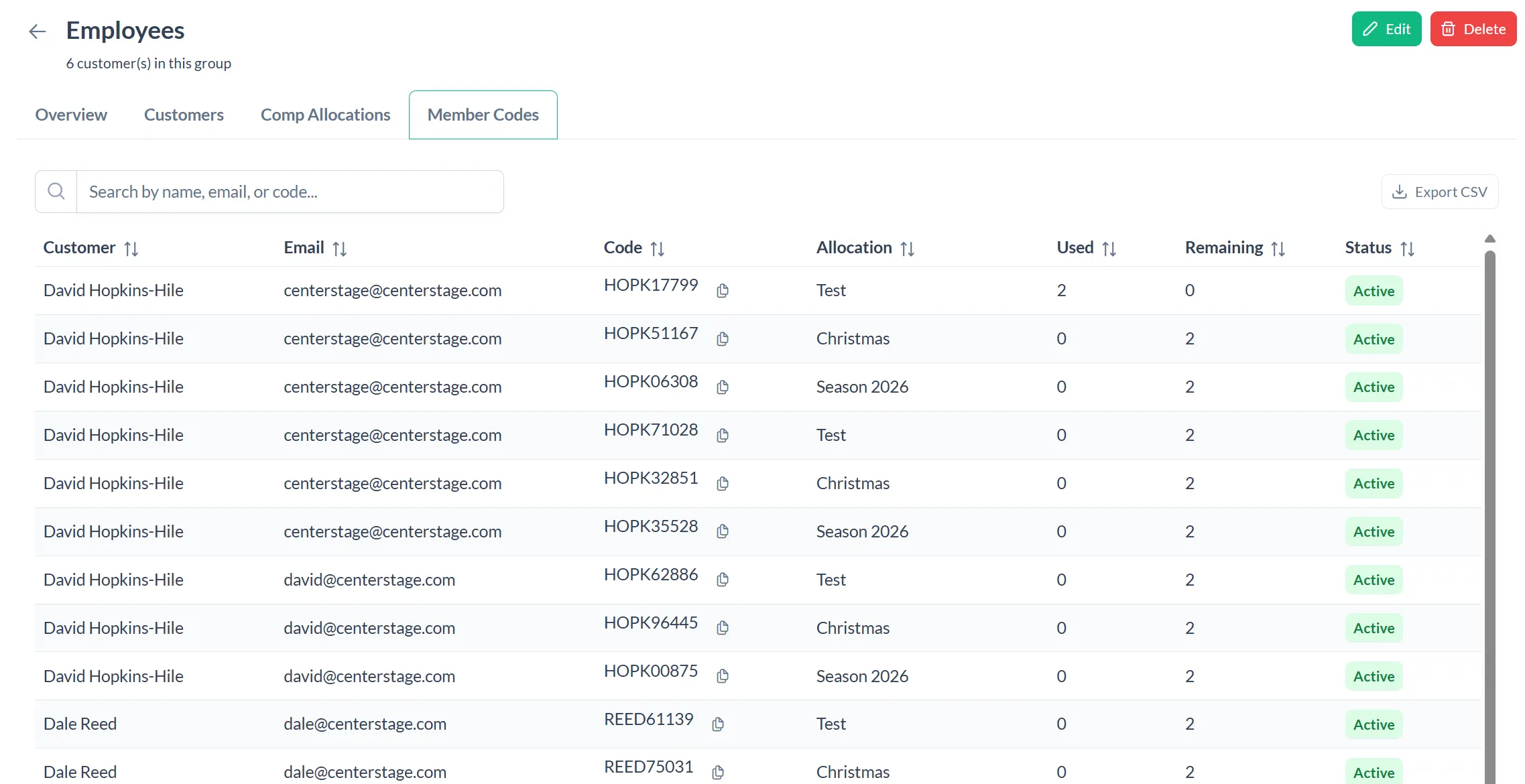
When you add a new group member or new comp allocation, the corresponding member codes will be automatically created. You can track usage of comps under the Used column.