Selling a Pre-Assigned Package
+ Click on Sales and choose Create a Sale
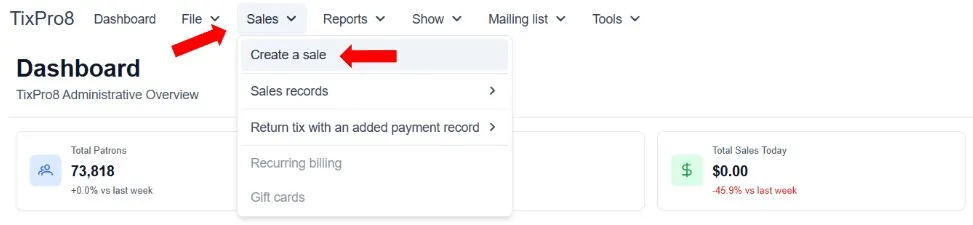
+ Choose Season Package

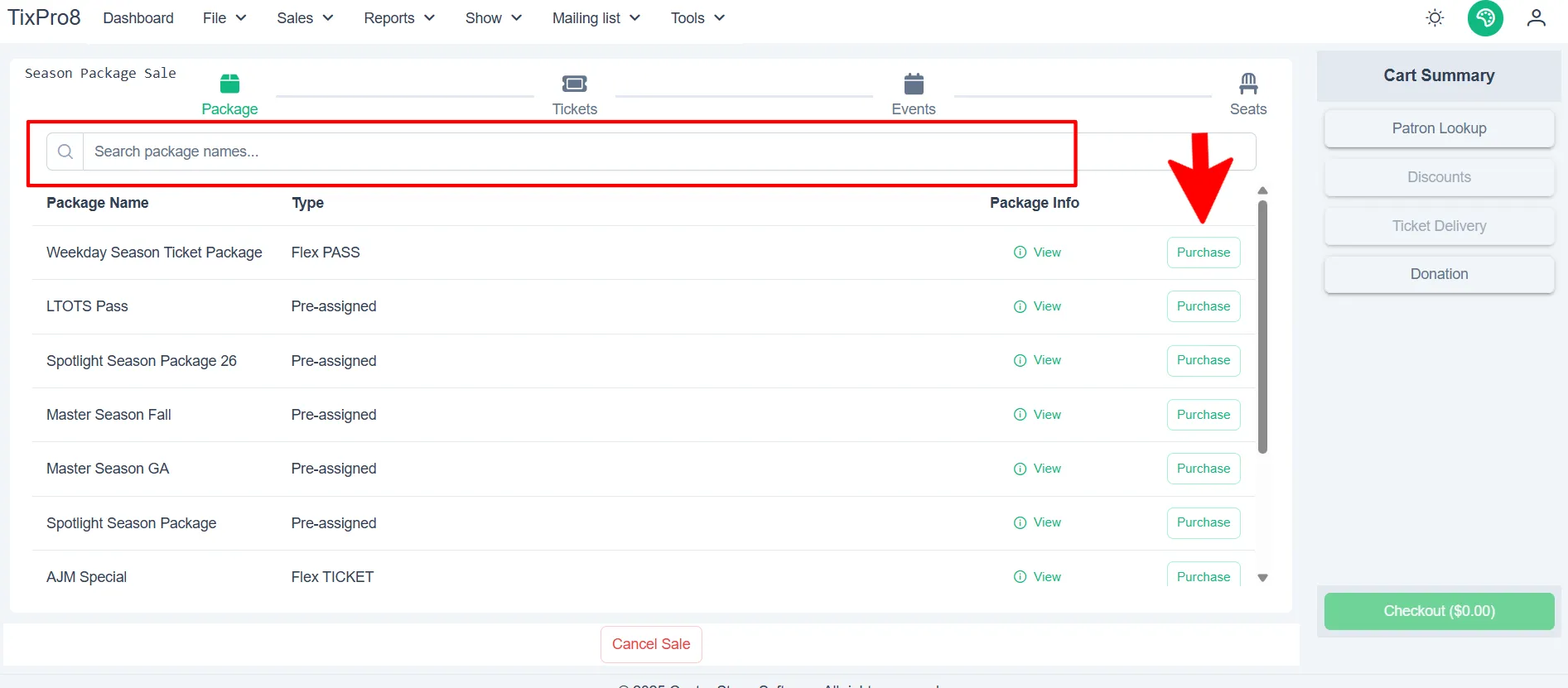
+ Choose the applicable package. Packages can be found by scrolling through the list or searching by name.
+ Choose the package by clicking Purchase
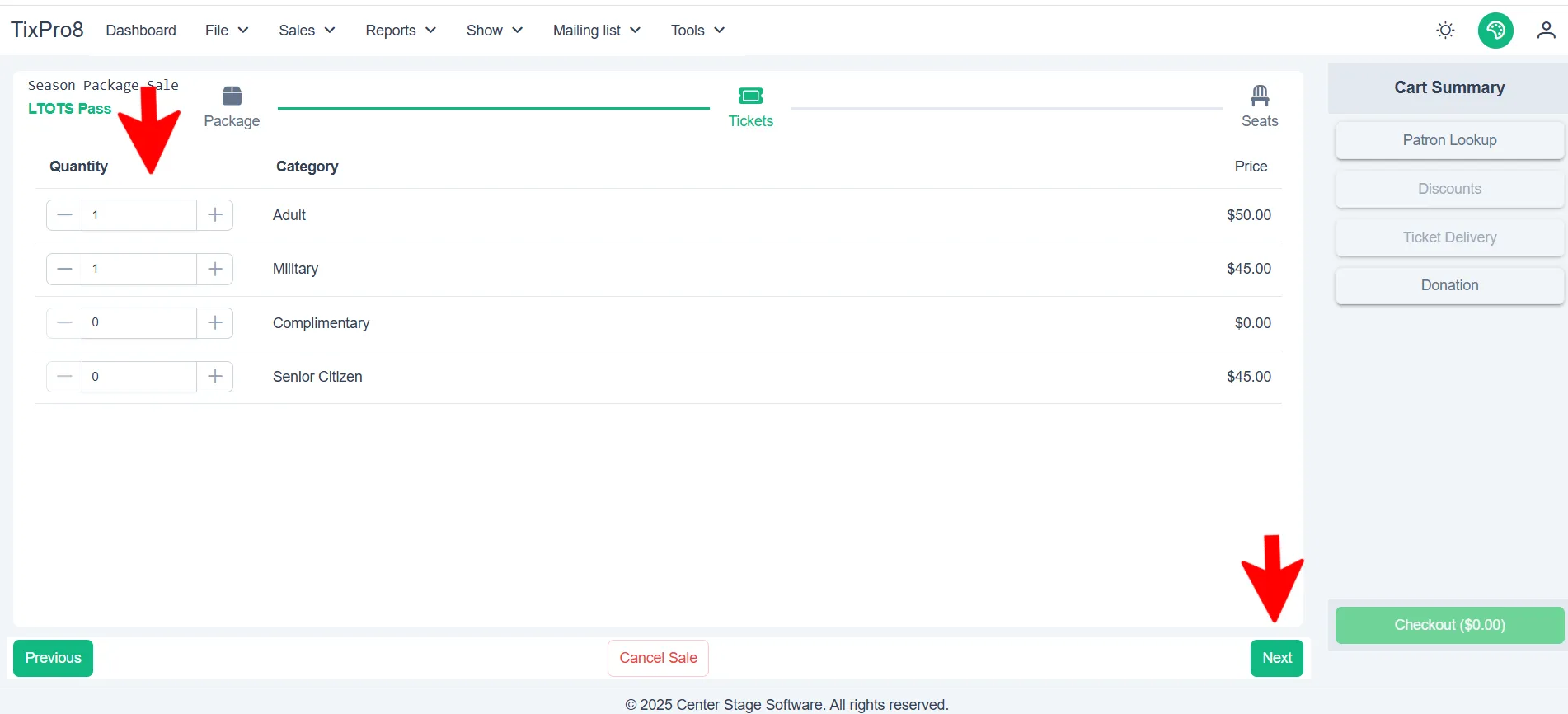
+ Chose quantity you would like for each category (price code) and click next
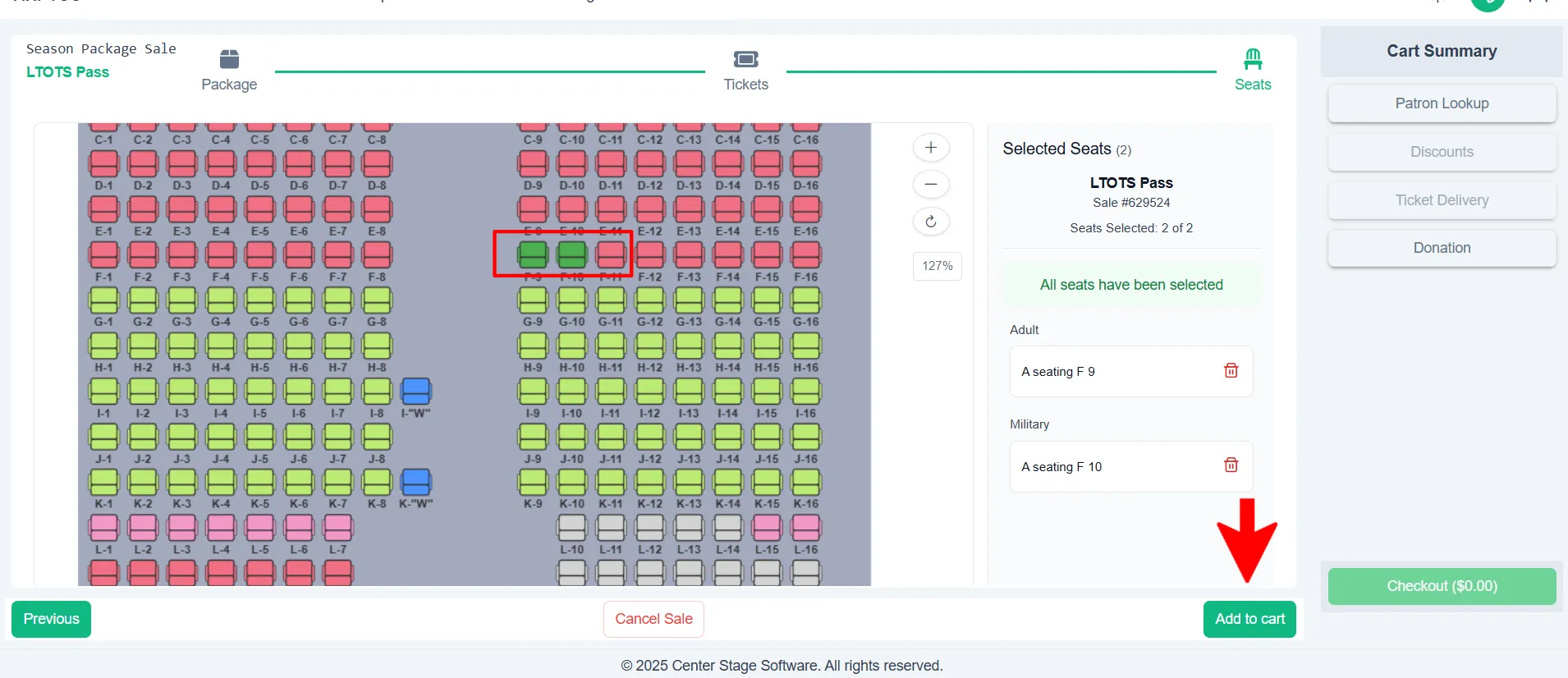
+ Depending on how your event is set up a seating chart will open for each event or one seating chart for all events - Chart: click on the seats you want to sell.
- Tips:
- A. The seating chart is interactive, you can scroll in/out, pan and move
- B. To change the seat selection you can either click on the seat in the seating chart or use the trash can under select seats
+ Click Add to Cart
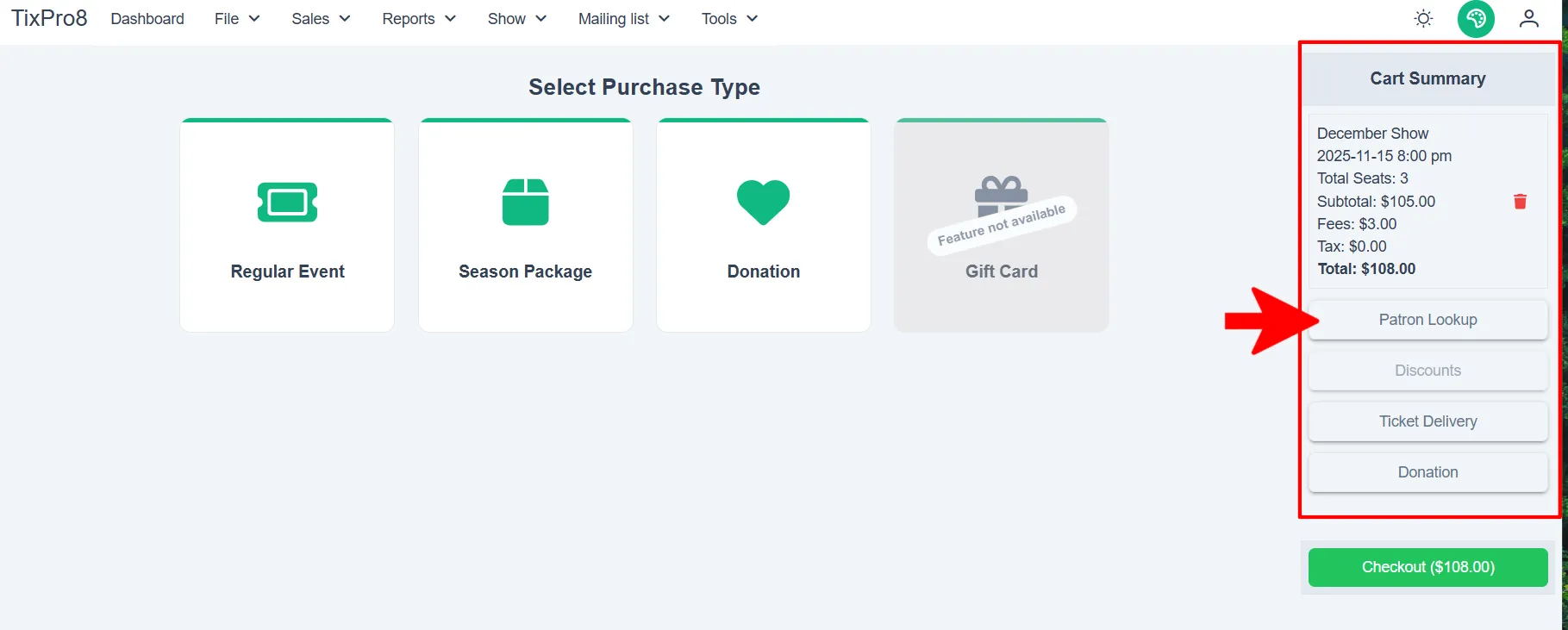
+ The tickets will show under the Cart Summary
- Tip: A. You can add as many tickets/events as you need to the cart before checking out
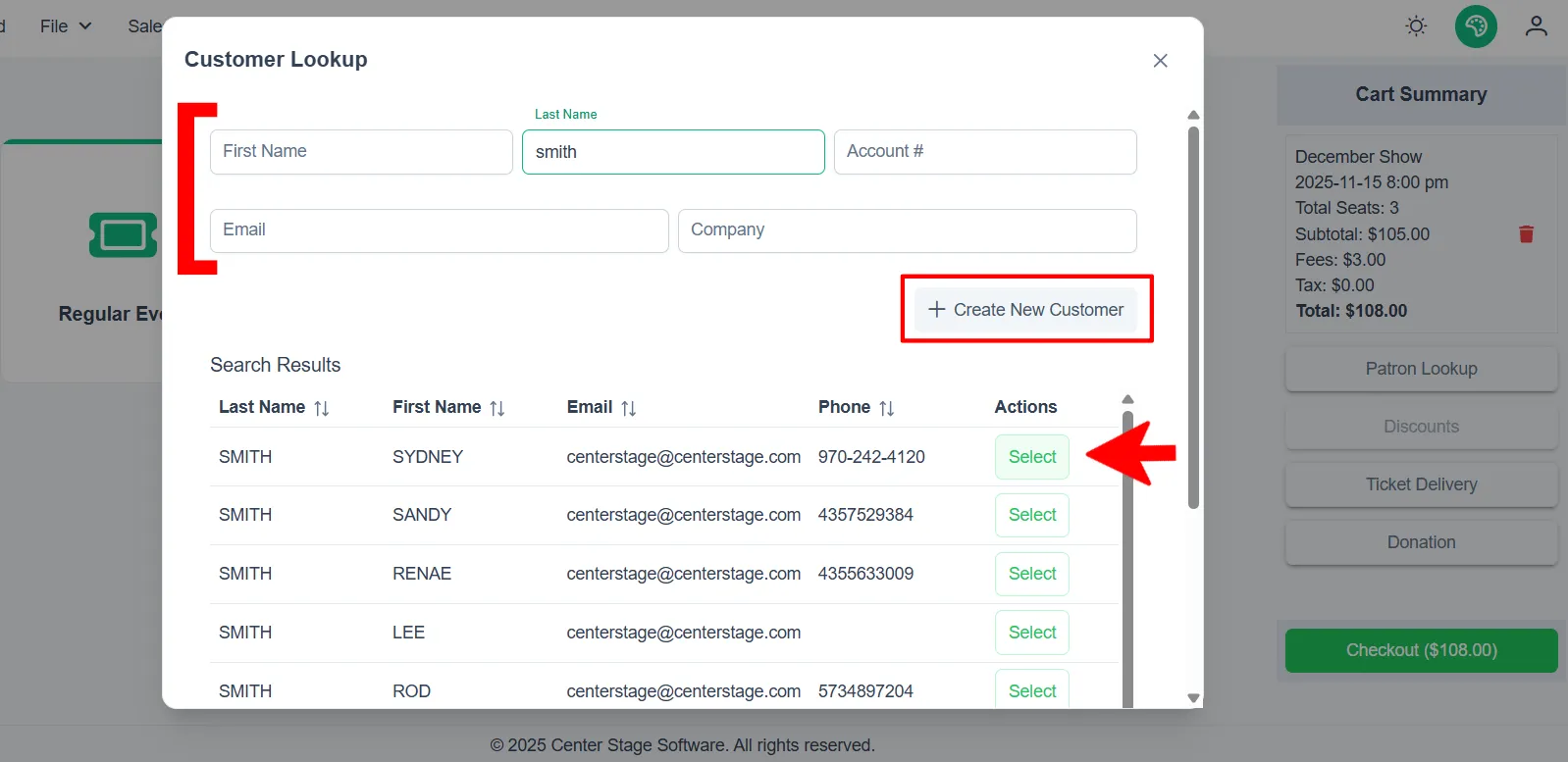
+ Click on Patron Lookup to attach a customer to the purchase
- Tips:
- A. You can search by any of the available search fields
- B. To choose the customer record click Select to the right of their name
- C. If you need to add a new customer click on +Create New Customer
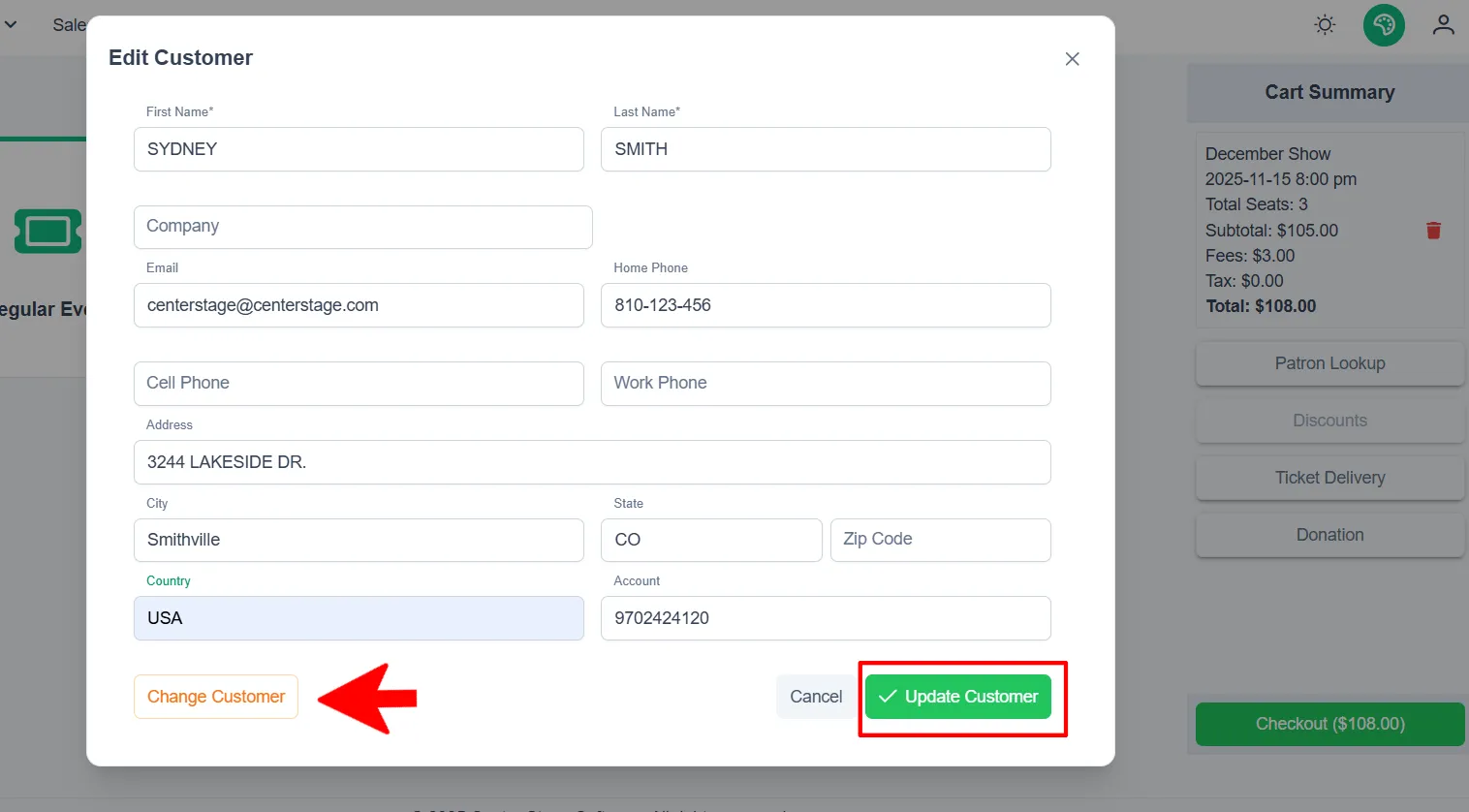
+ The customer information screen will open for you to verify their information. Once information is correct, click Update Customer.
- Tips:
- A. You can change any information you need to update
- B. If you selected the wrong customer, click Change Customer and it will take you back to the customer search
- C. When the customer is attached to the sale their name will appear in the cart summary. To change or edit the customer click the pencil icon.
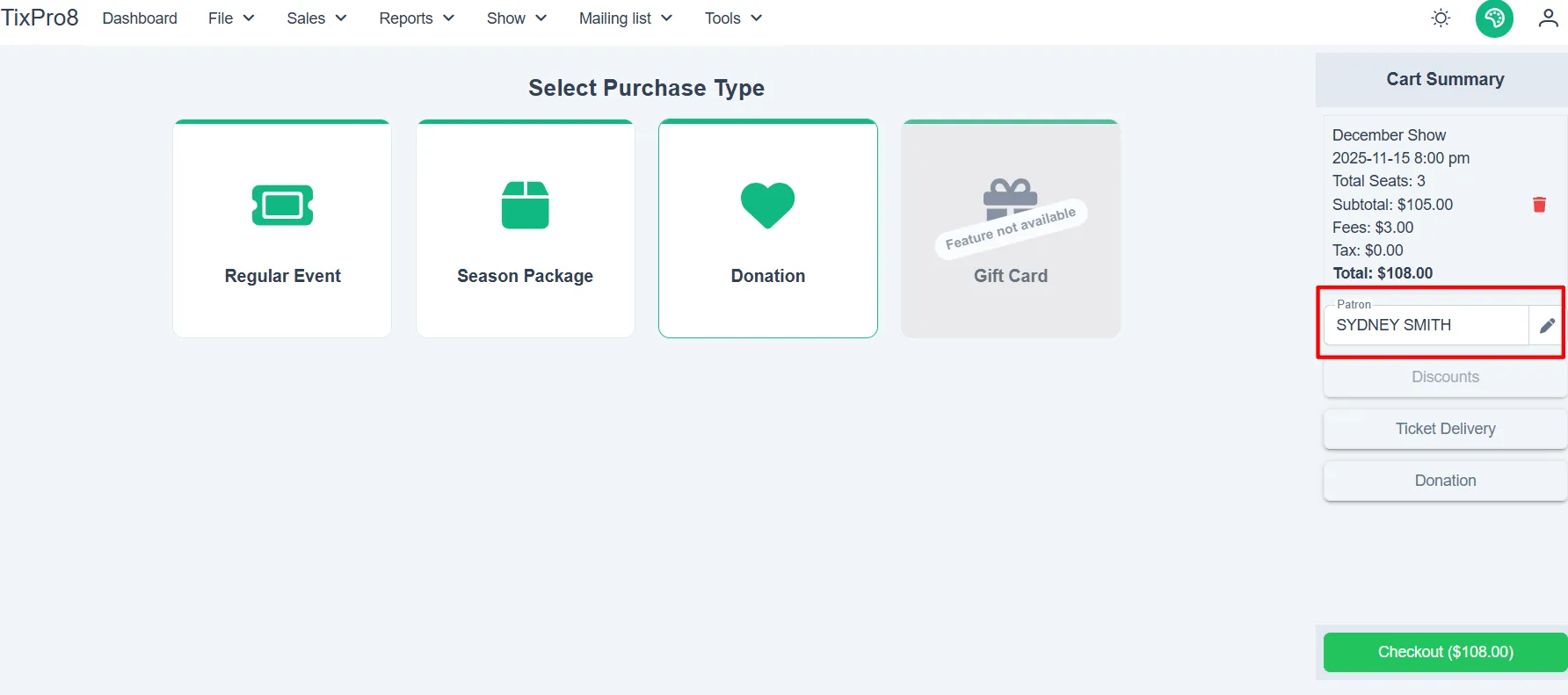
+ Click Checkout, this will open the payment window
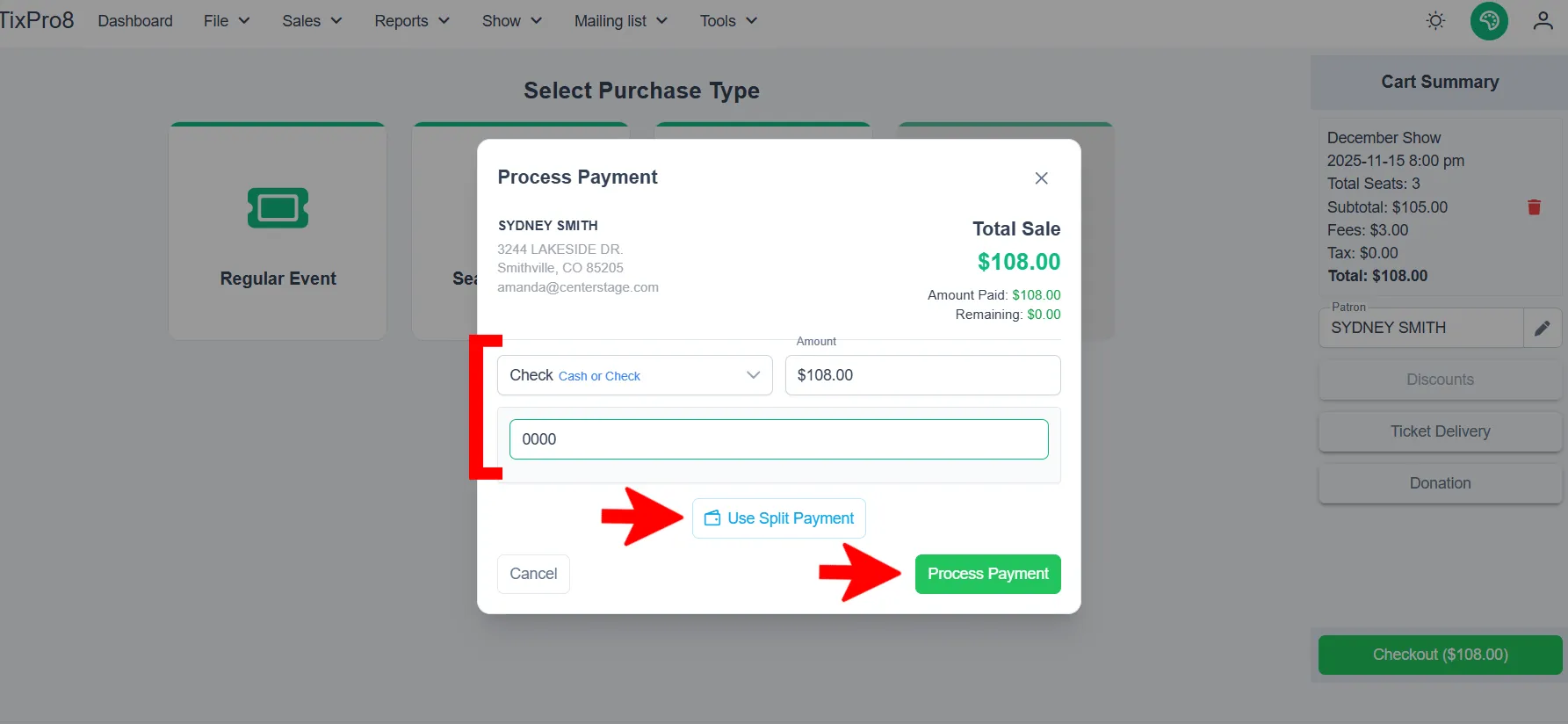
+ Select the applicable payment method(s), once you chose the corresponding entry blocks will appear (ex: CC - CC number, exp date, CCV; Check - check number; Gift Certificate - gift card number; etc)
- Tips: You can pay with multiple payment methods but clicking Use Split Payment
+ Once all payment method(s) have been entered for the total sale amount click the Process Payment button
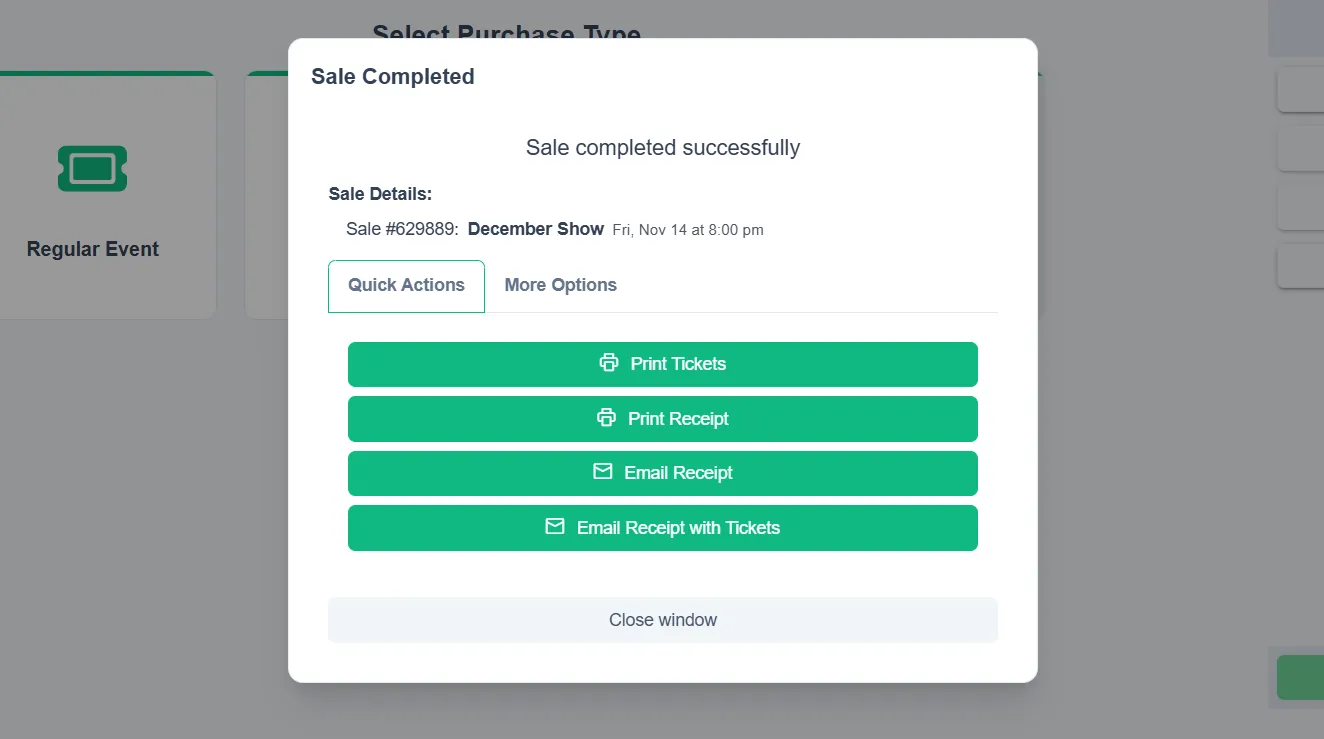
+ Next the completed sale screen will appear. This is where you can choose ticket & receipt options. When finished click Close Window!