Selling a Regular Event
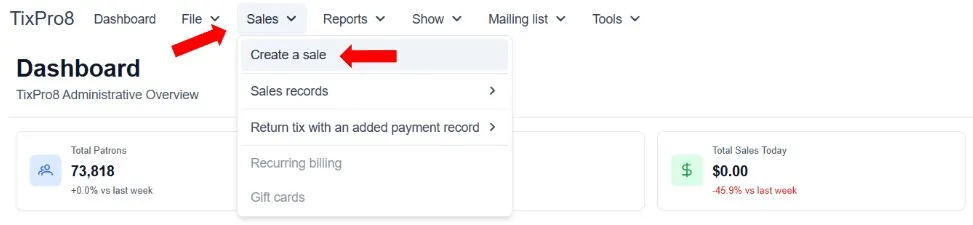
+ Click on Sales and choose Create a Sale
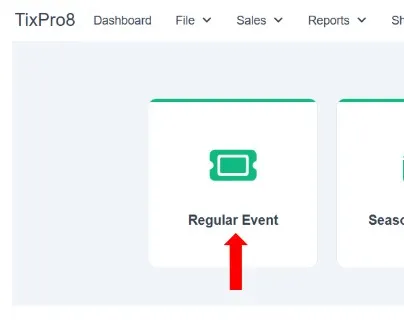
+ Choose Regular Event
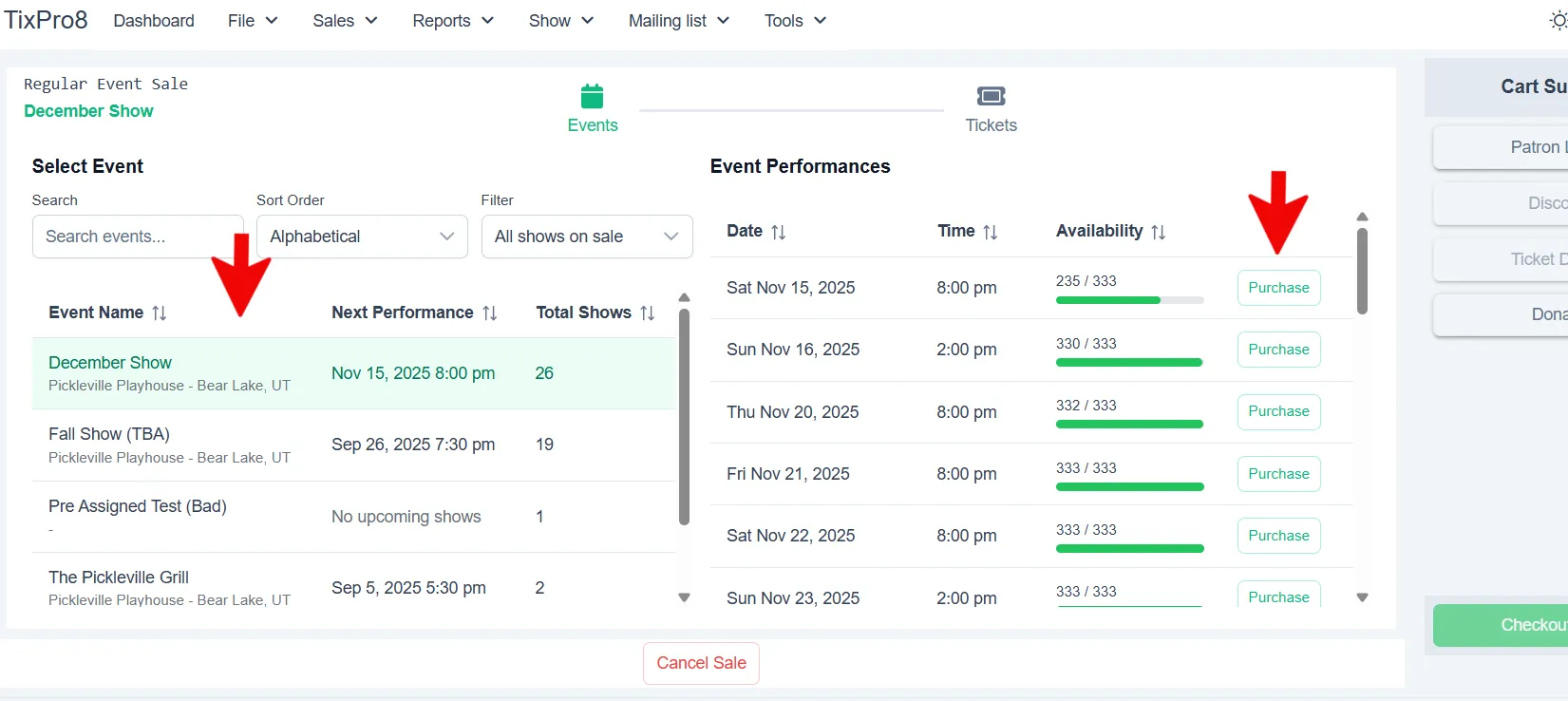
+ Choose the applicable event. Events can be found by scrolling through the list, searching by name, or sorting by order and filter.
+ Choose the event date by clicking Purchase
+ Seating Chart: click on the seats you want to sell.
- Tips: A. The seating chart is interactive, you can scroll in/out, pan and move
- B. To change the seat selection you can either click on the seat in the seating chart or use the trash can under select seats
Under Selected Seats pick the price code in the dropdown
- Tip: Once you pick a price code you can click Apply to remaining to automatically apply the same price code to all tickets
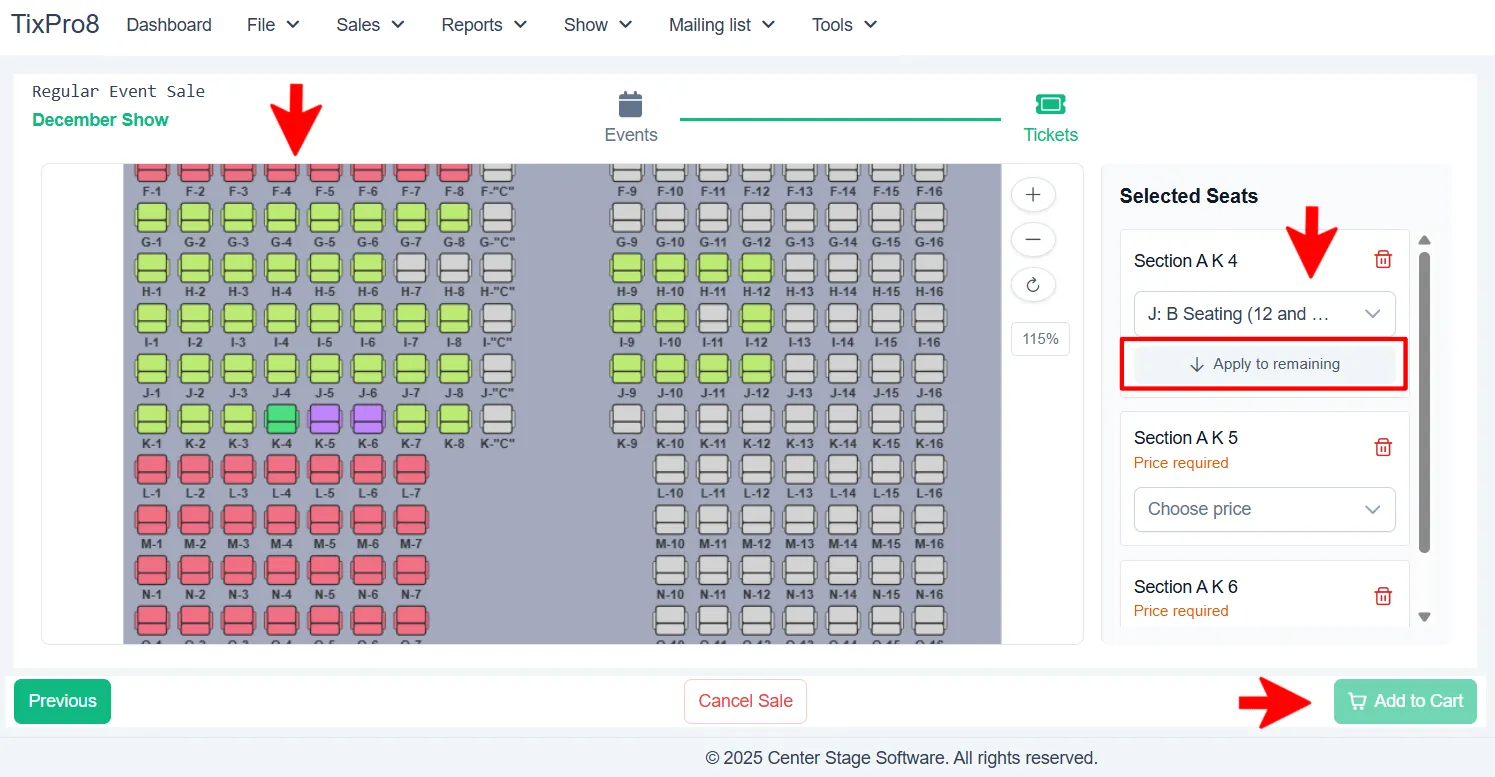
+ Click Add to Cart
+ The tickets will show under the Cart Summary (right side of screen)
- Tip: You can add as many tickets/events as you need to the cart before checking out
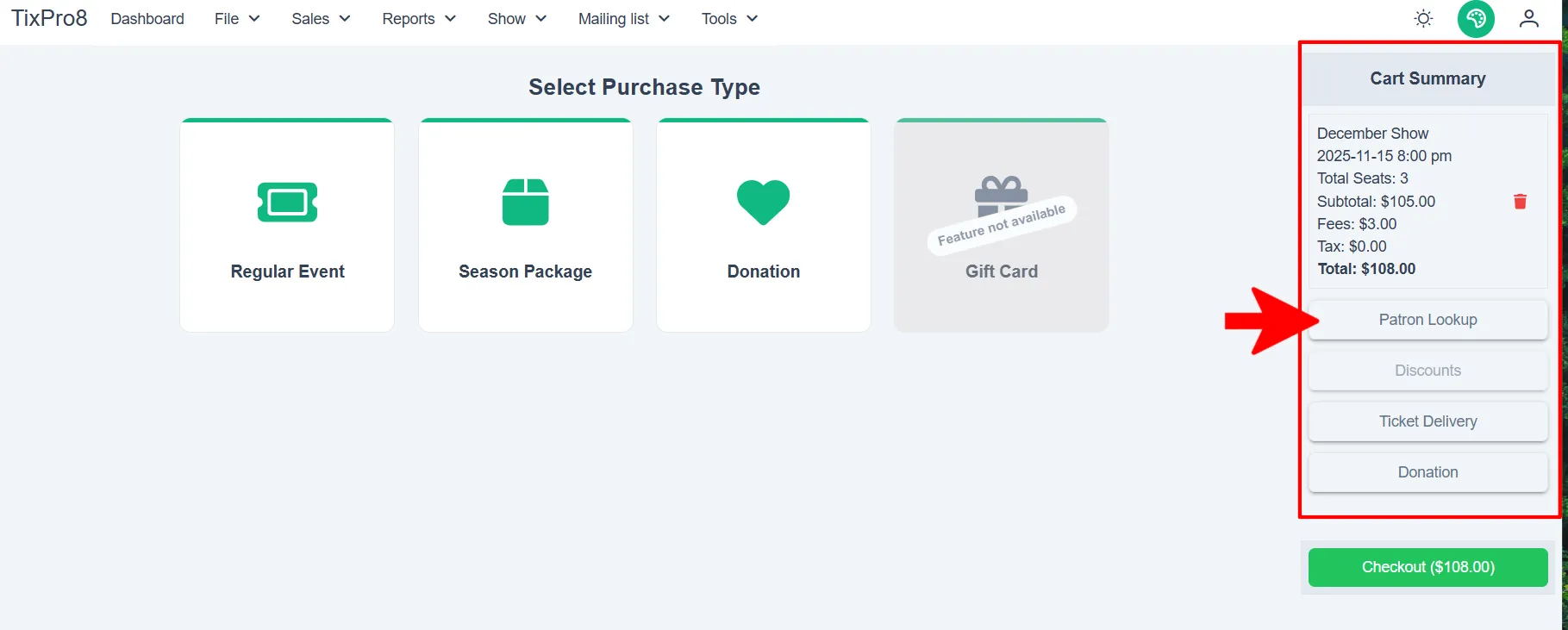
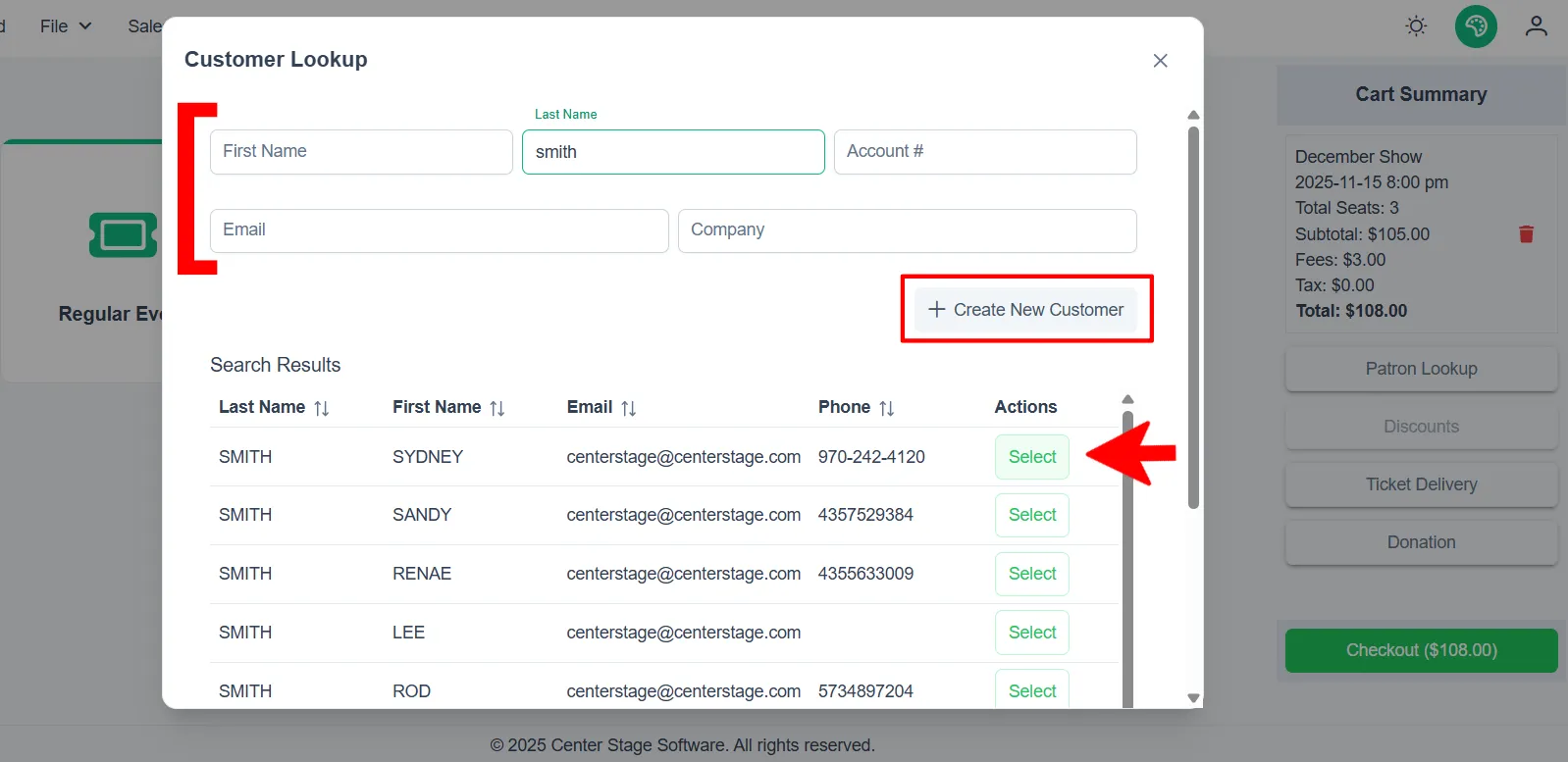
+ Click on Patron Lookup to attach a customer to the purchase
- Tips:
- You can search by any of the available search fields
- To choose the customer record click Select to the right of their name
- If you need to add a new customer click on +Create New Customer
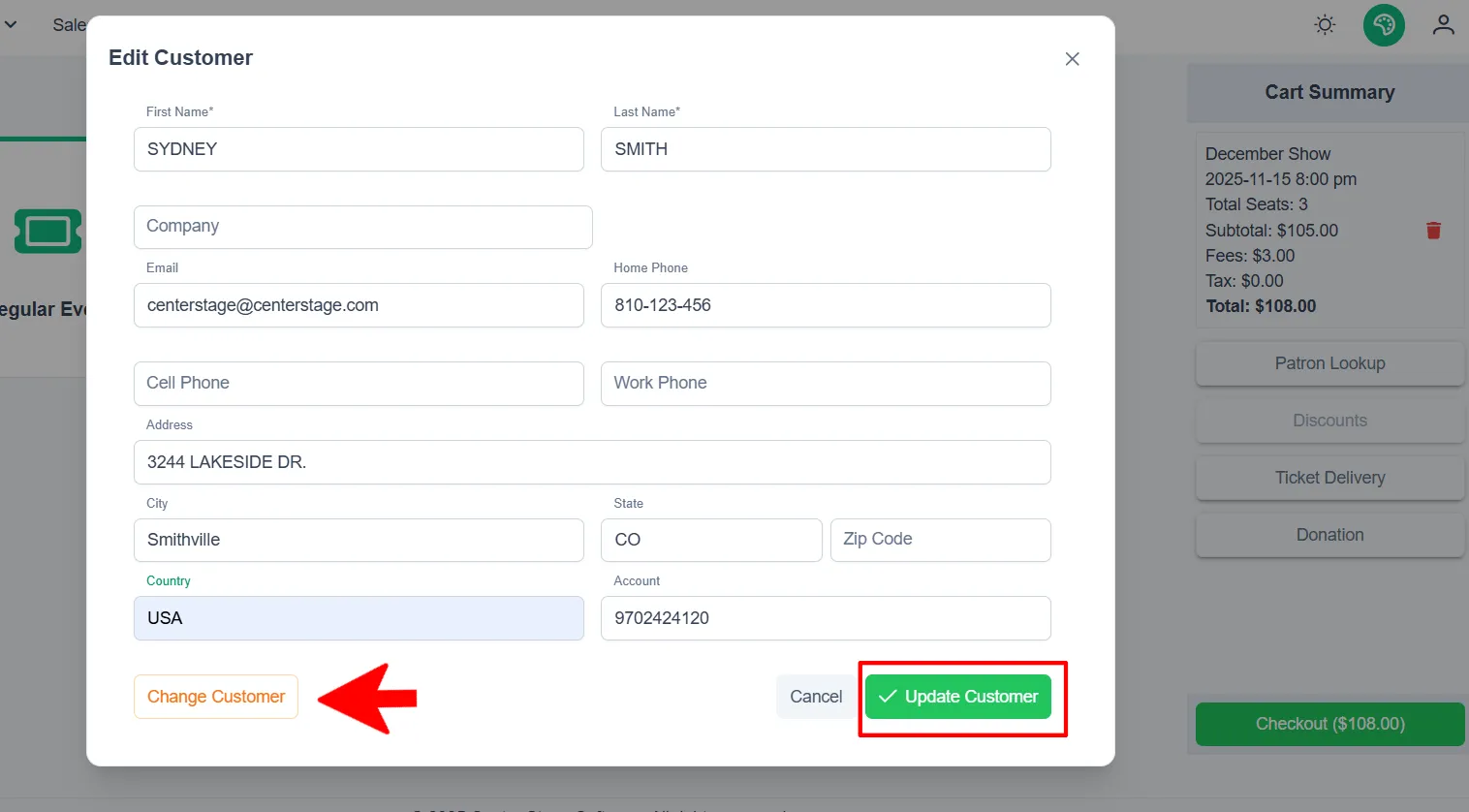
+ The customer information screen will open for you to verify their information. Once information is correct, click Update Customer.
- Tips:
- You can change any information you need to update
- If you selected the wrong customer, click Change Customer and it will take you back to the customer search
- When the customer is attached to the sale their name will appear in the cart summary. To change or edit the customer click the pencil icon.
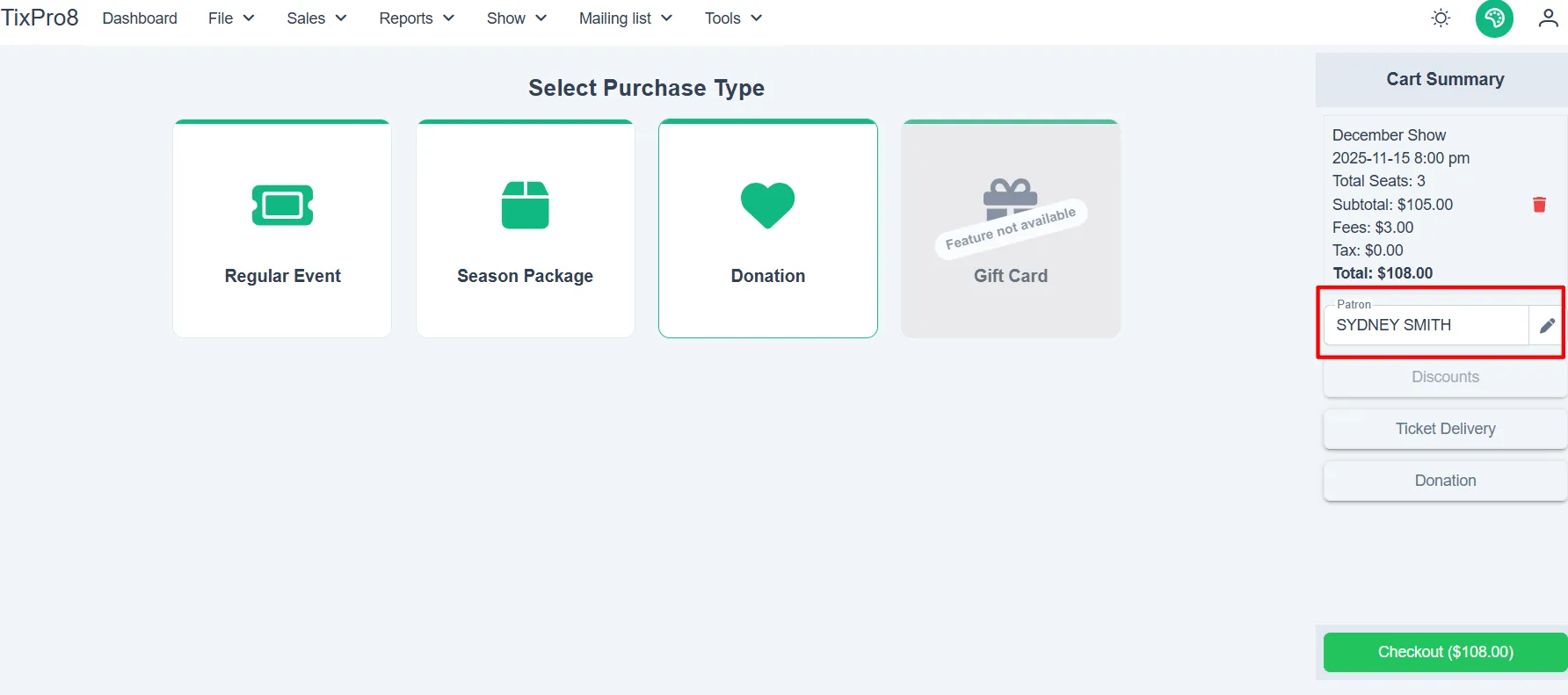
+ Click Checkout, this will open the payment window
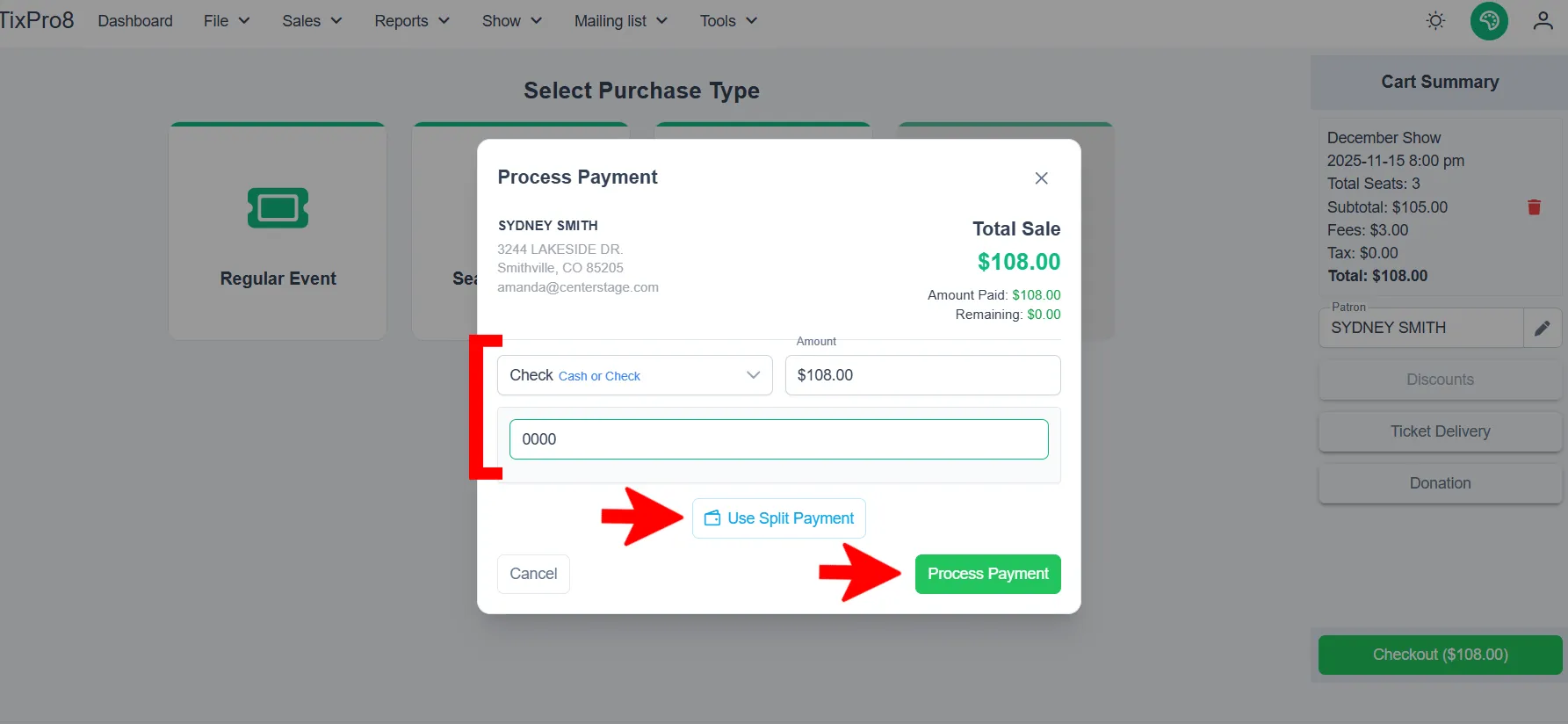
Select the applicable payment method(s), once you chose the corresponding entry blocks will appear (ex: CC - CC number, exp date, CCV; Check - check number; Gift Certificate - gift card number; etc)
- Tips: You can pay with multiple payment methods but clicking Use Split Payment
+ Once all payment method(s) have been entered for the total sale amount click the Process Payment button
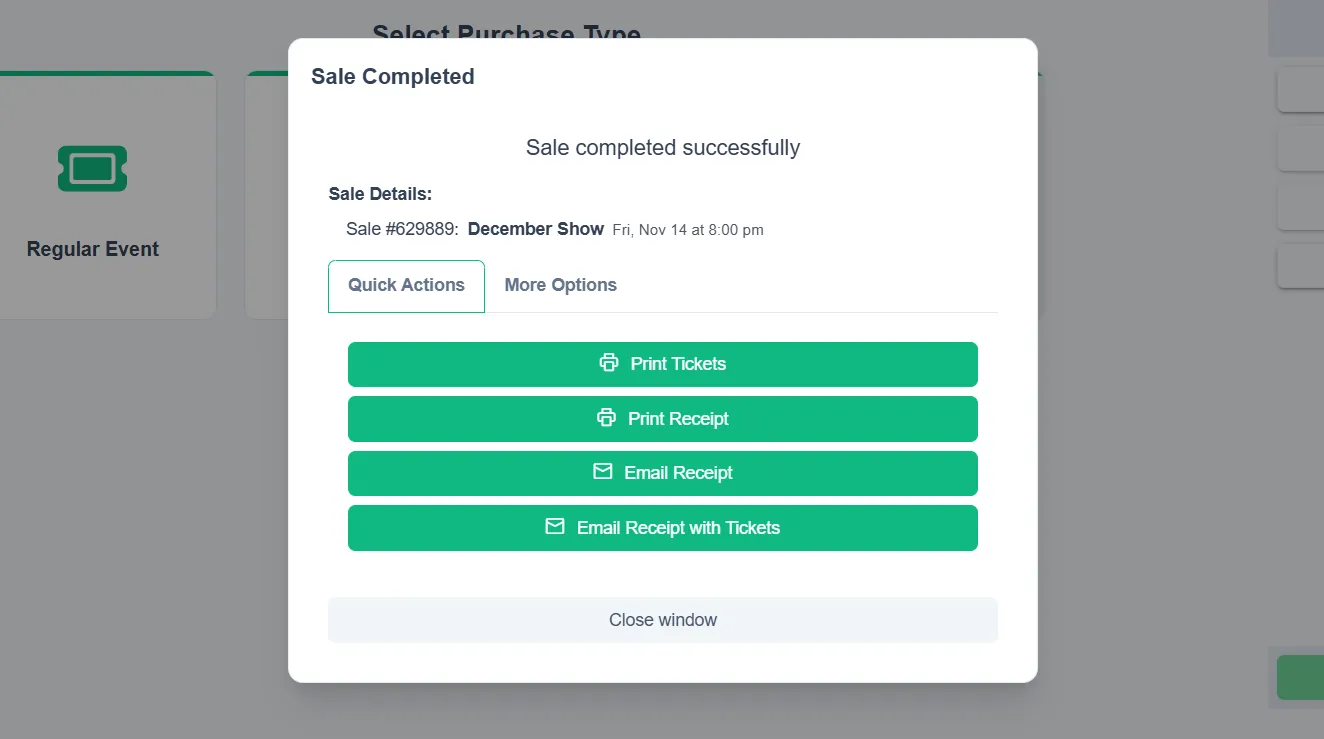
+ Next the completed sale screen will appear. This is where you can choose ticket & receipt options. When finished click Close Window!