Sales Record - Exchanges
There are many reasons you may need to make exchanges to a sale and we have upgraded the process for you in TixPro8! This article includes:
How to Change SeatsHow to Change Seats | Money Owed ExchangePatron Money Owed Exchange | Money Refund ExchangeMoney Refund Exchange
How to Change Seats
The first step in all exchanges is to locate the sales records you need to edit. Click HereClick here for directions.
When you are in the sales record click on the Tickets Tab and choose “Add or Change Seats”
Note: If you need to change the performance choose “Change Performance” and choose the event name > event performances > select the date

The seating chart will open for the current show (or selected if you are changing performances). You will need to select the new seats and remove the current seats, it is suggested to remove the seats you no longer need first. You can do this one of two ways:
- Use the trash can for each seat on the right side
- Unclick the seats on the seating chart
You will know a seat has been removed when it no longer appears under the current seat list.
Note: At anytime you can view the original seat and pricing information by clicking on “View Prior Seat Info”
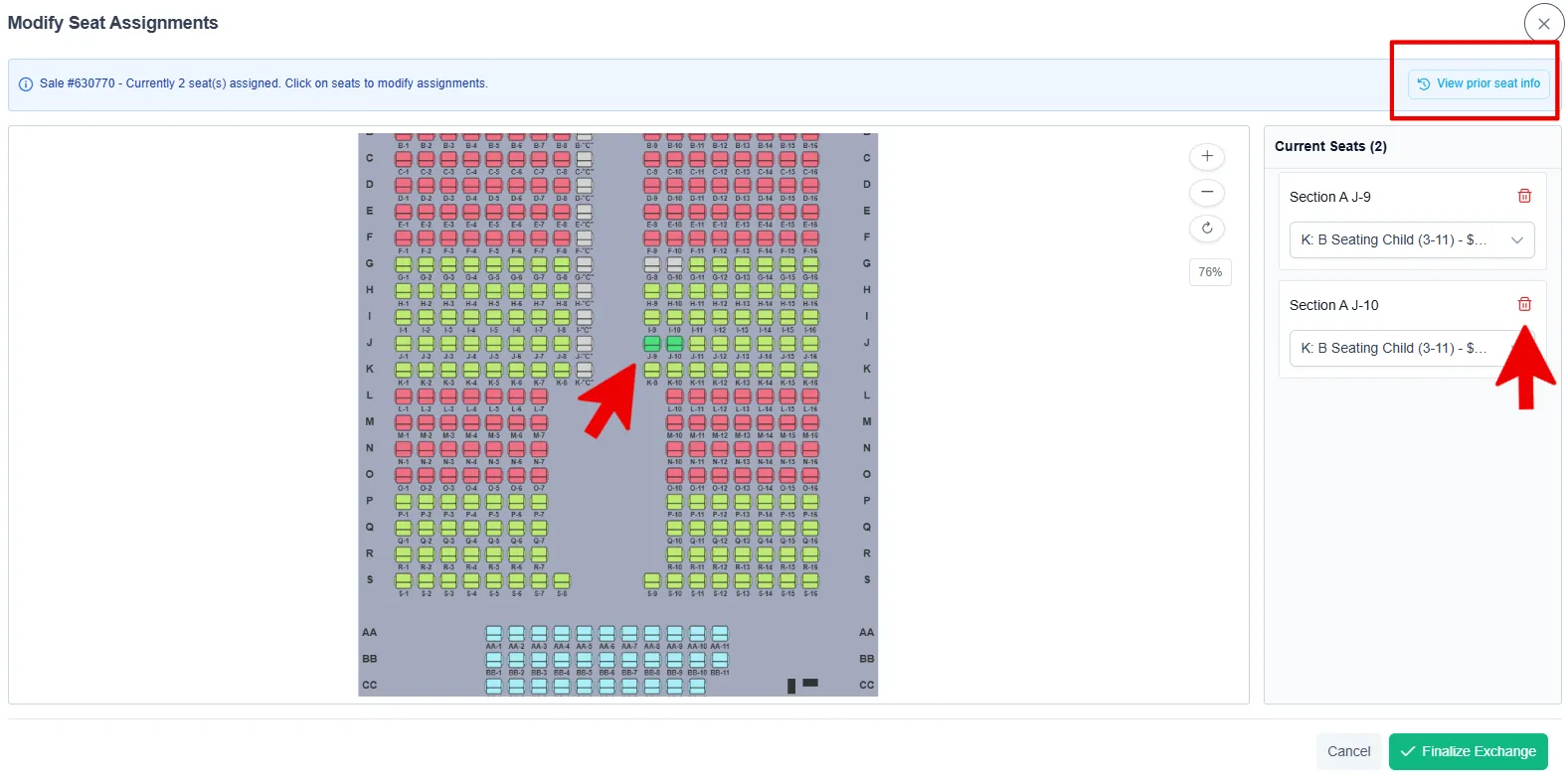
Now you can add the new seats by clicking on the seats on the seating chart and then choosing the price code for each seat. For an even exchange make sure to pick the same price code as the original seats.
Once you have confirmed your changes click the “Finalize Exchange” button in the bottom right.
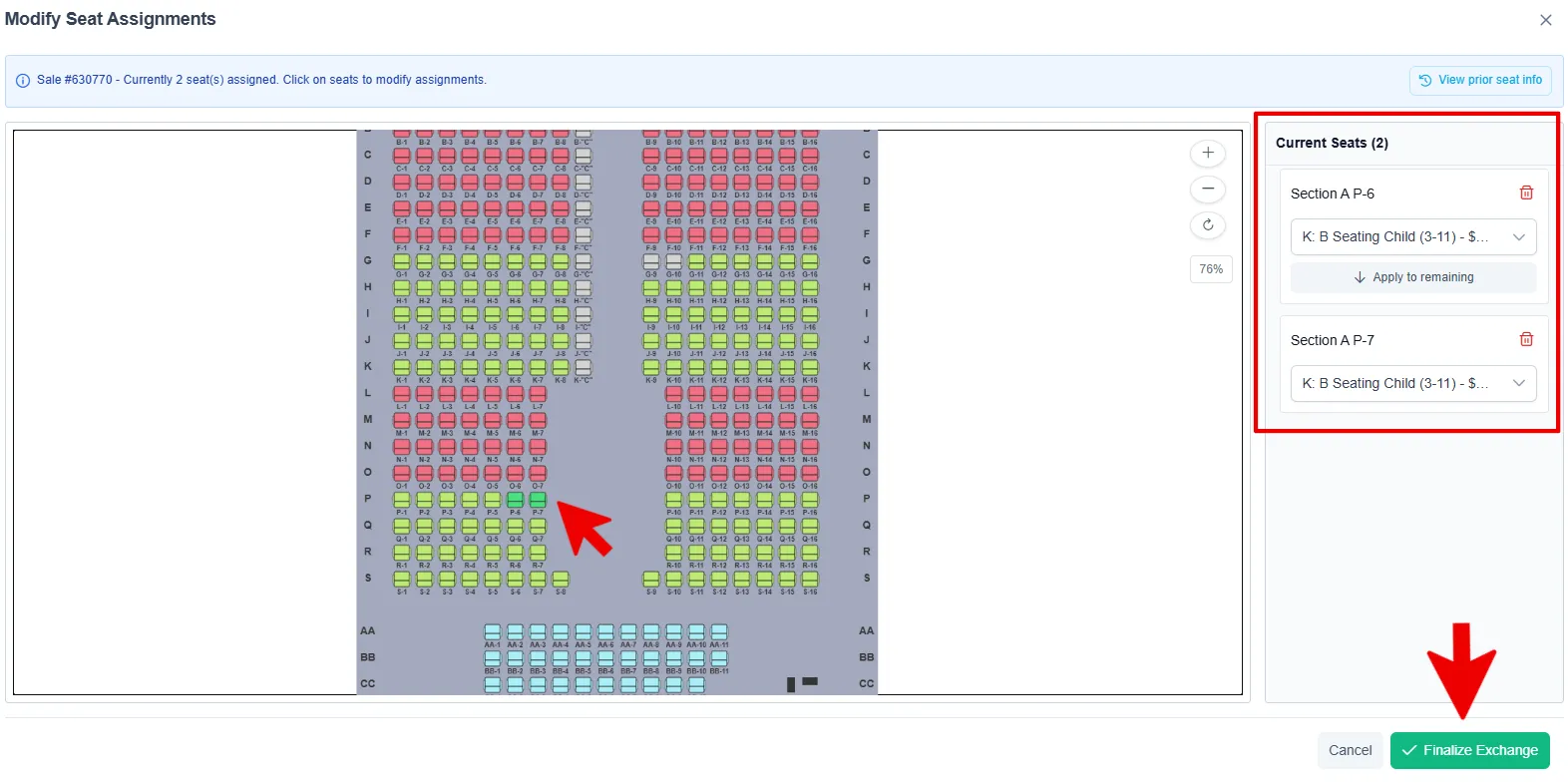
Note: At any time you can click the cancel button and no seat changes will be made
The Finalize Exchange screen will open to allow the opportunity to double check everything is correct before the exchange is saved. If you need to make any changes you can click the “Back to Selection” button on the bottom left. If everything is good choose “Confirm Exchange”.
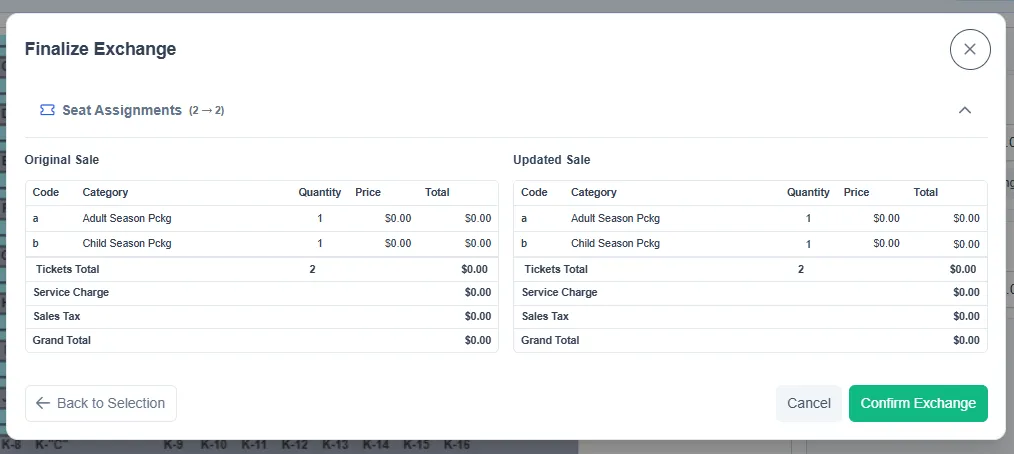
You can now print/email the new tickets and receipt!
—-------------
If your exchange includes seats that are different prices you will have some extra steps. You may need to charge or refund for a price difference.
Money Owed Exchange
In the event the new seats are more expensive than the original, you can choose to charge the customer for the difference.
After you click “Finalize Exchange” the exchange summary screen will appear. You will see details of the exchange, including the amount now due. You have the choice to process the payment now or to save changes without payment.
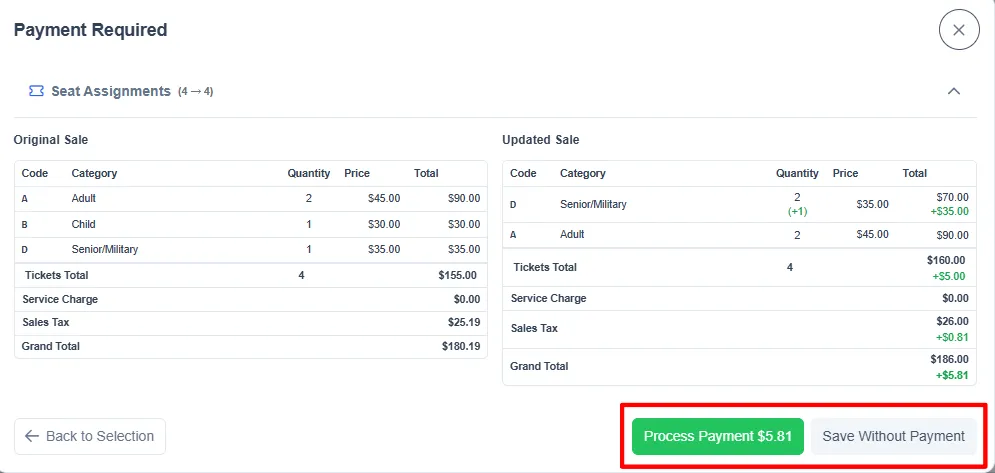
If you choose to process the payment now the payment screen will open. You can choose the payment method, enter payment details and then click “Process Payment”
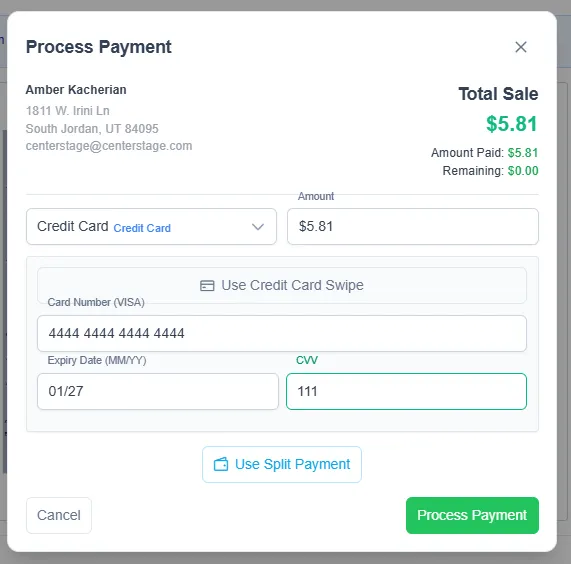
You can now print/email the new tickets and receipt!
If you choose “Save Changes without Payment” the screen will close and the sale will show as out of balance. In the payment screen you will see the amount owed and be able to process a payment at a later date if you choose by clicking the “Add Payment” button.
Money Refund Exchange
If your new seat selection is less than the original seats you will have a refund required. Like with money owed you have the option to process the refund now or save without refund.
After you click “Finalize Exchange” the exchange summary screen will appear. You will see details of the exchange, including the refund amount and how the amount is calculated (ex: tickets, sales tax, service charges, etc).
You have the option to refund service charges or not. If you would like to refund the service charges and/or Sales click the applicable boxes.
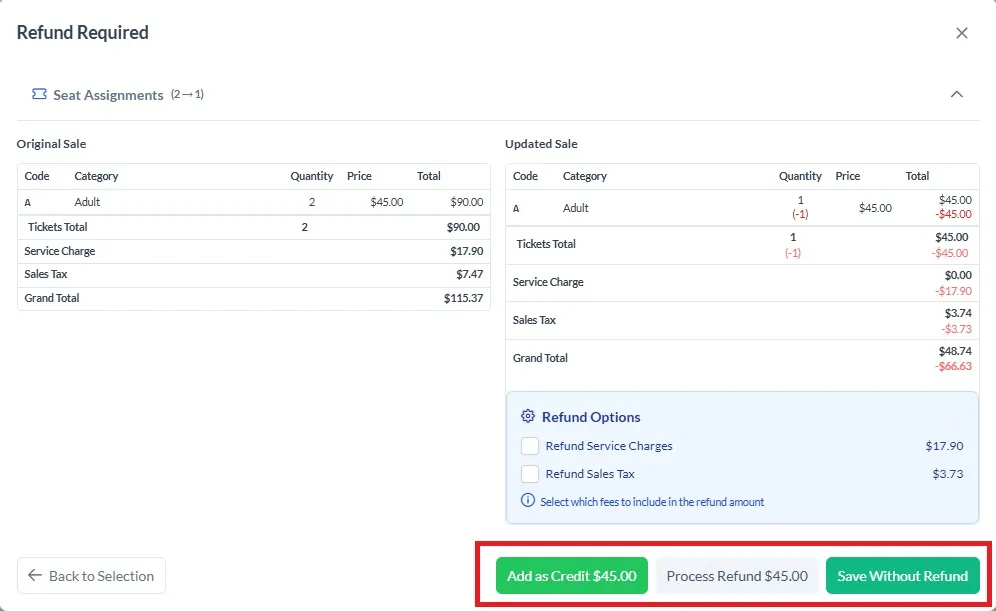
Clicking “Process Refund $xx.xx" will open the process refund page. Here you will see all the available payment options as ways to refund. Click on the option(s) to choose how the refund will be made.
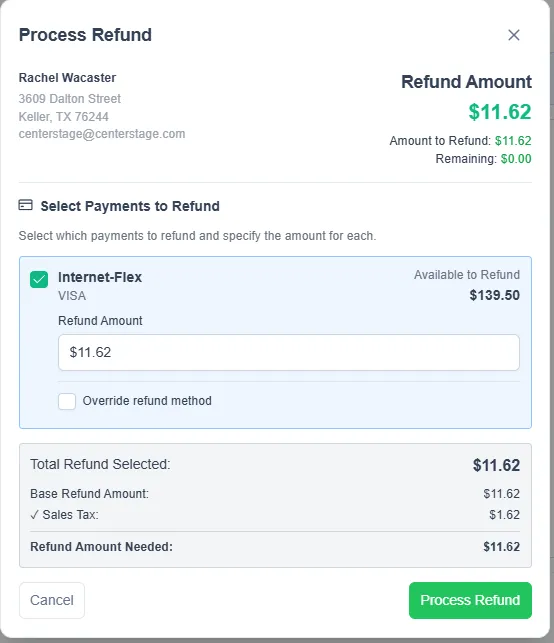
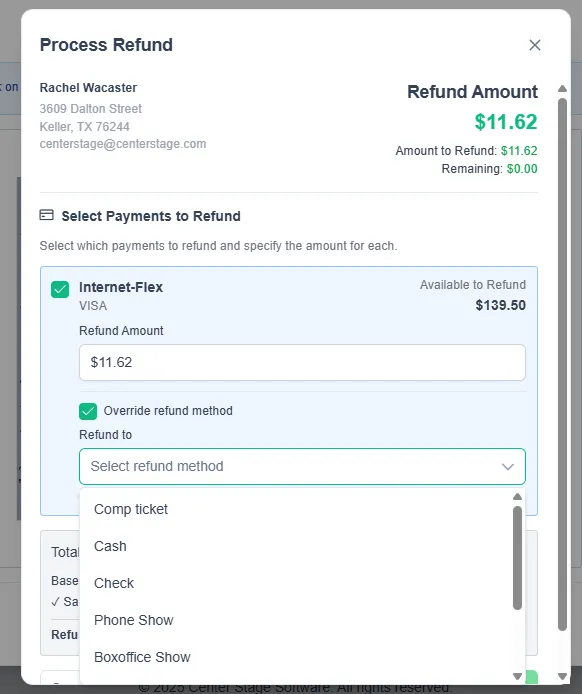
Once you have made a selection you have the option to override the refund method. This will open a dropdown where you can select the method (this list is determined by the payment options you have in your database).
Once your selections have been made, click “Process Refund”
—-----------------------------------------
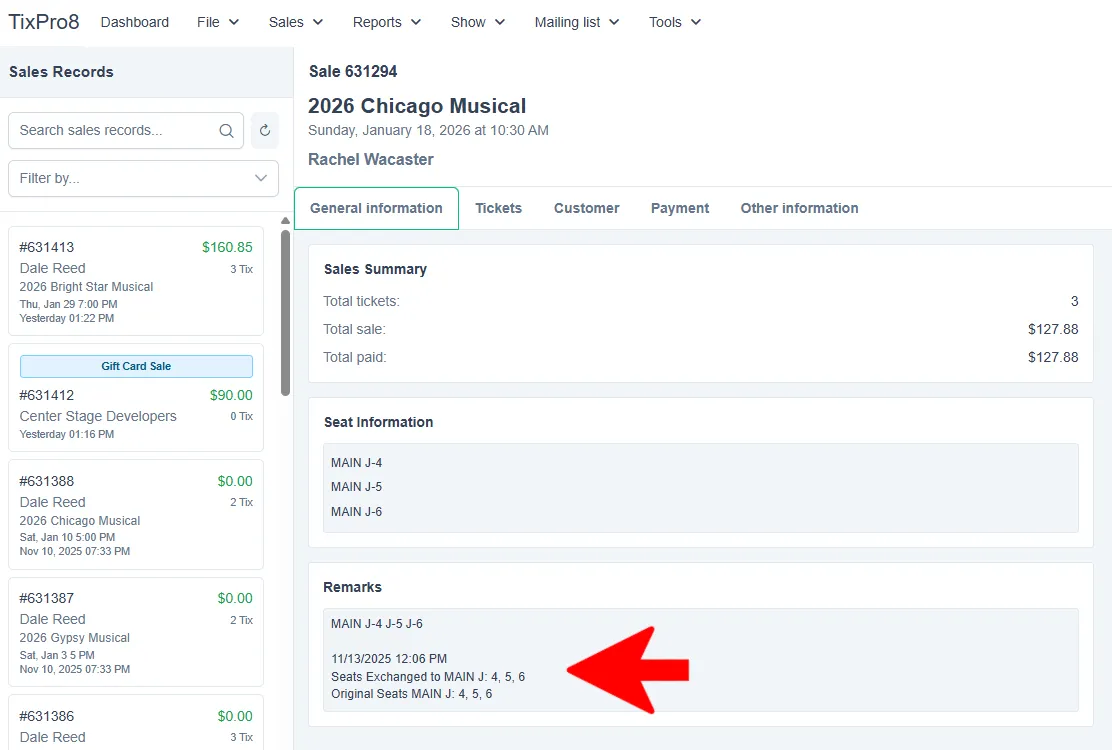
If any exchanges are made to a sale you will see a note with the specifics in the remarks section of the sale record.