Godex Ticket Printing
If you are printing to your Godex printer from TixPro 8 and the printed text and images look pixelated you will need to turn off "dithering."
To start navigate to your list of printers. On a windows computer you can search for Printers & scanners.
You should then see a list of your printers-
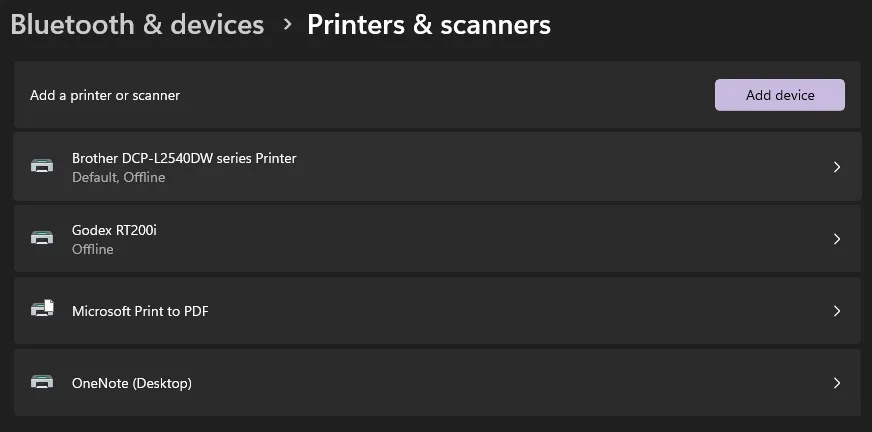
Click on your Godex Printer. This will open the settings window for the Godex-
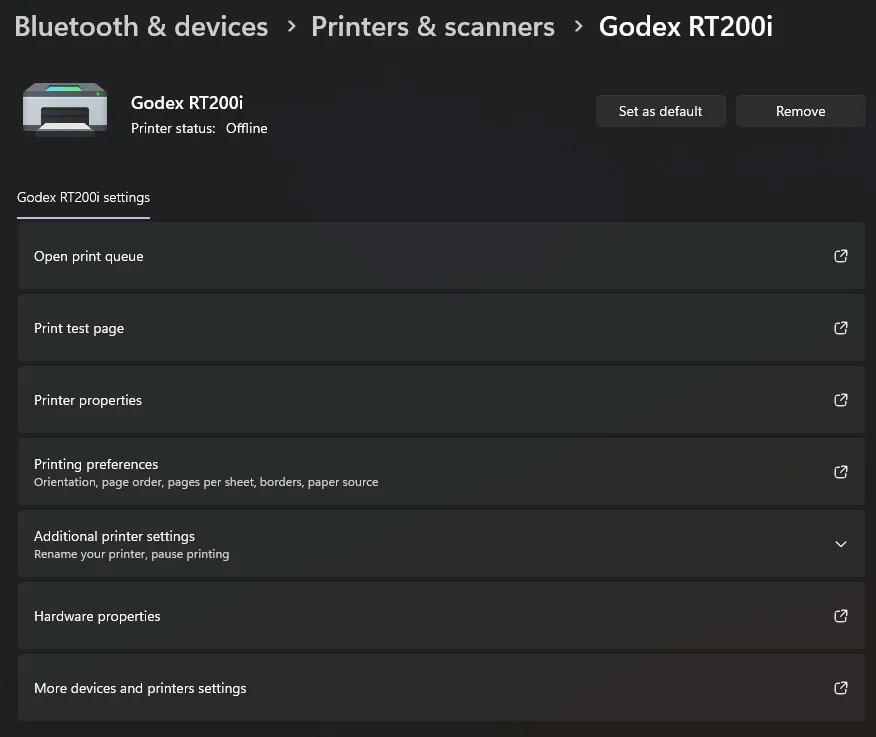
Select Printer properties. This opens the driver window. If the window opens to another tab other than General, click the General tab. Then click Preferences-

Then click Graphics-

Then set your Dithering to None-

Click Apply and then OK.
While you can technically stop there, it is best practice to match the settings in the Advanced tab with the settings in General tab.
If you want to do that click on the Advanced tab in the Printing Preferences window.

Click Printing Defaults-

This window should look familiar from when we changes settings in the general tab.
Click Graphics-

Set your Dithering to None-

Click Apply and you are done!